Pizu AI

Photo to Watercolor

Reimagine your photo with translucent color washes and soft watercolor edges.

469 / 4000

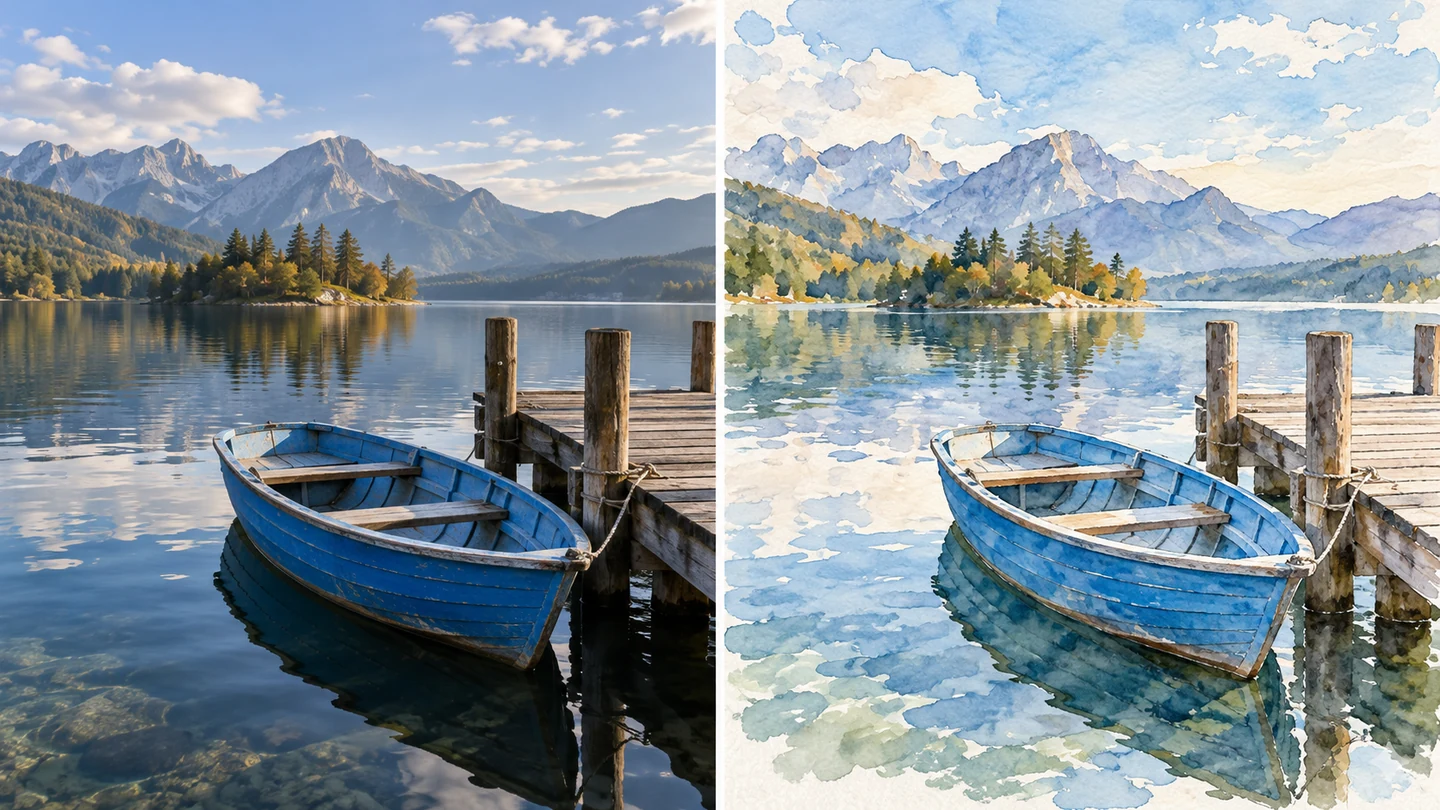
Matched diptych of an original photograph of a blue rowboat at a lakeside jetty and the same composition as transparent watercolor with paper highlightsIllustrative style study

Key Features of Photo to Watercolor

Explore flowing pigment, gentle edges, and expressive palettes with your photo as the starting point.

Matched diptych of an original photograph of a blue rowboat at a lakeside jetty and the same composition as transparent watercolor with paper highlights

Give photos translucent watercolor color

Transform sharp photographic detail into soft washes, pigment blooms, and paper highlights. The watercolor prompt starts with the light, flowing qualities that make this painting style distinctive.

Try watercolor washes
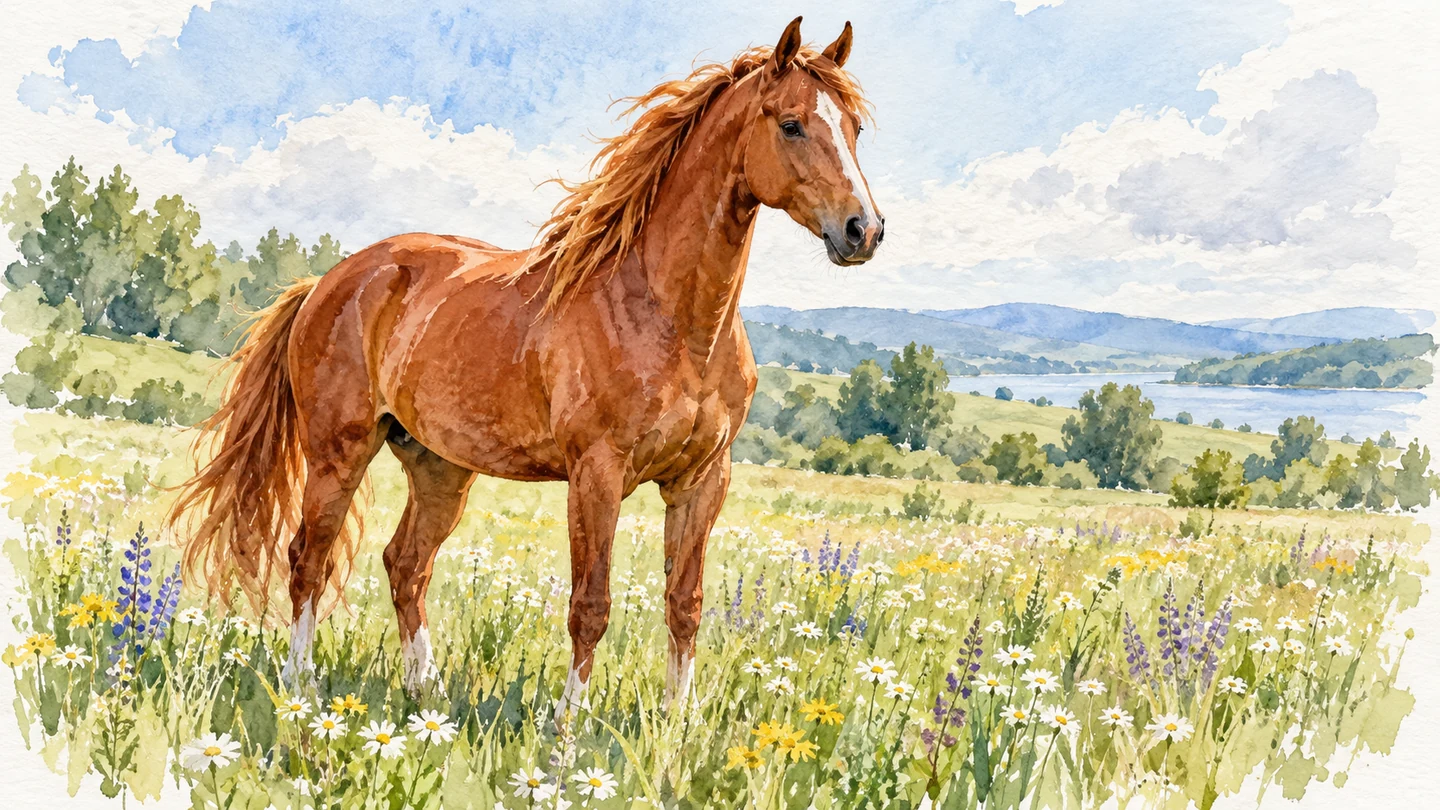
Watercolor painting of a chestnut horse in a meadow, translucent chestnut washes and readable mane, white paper edges

Create gentle watercolor portraits and pet art

Reimagine a favorite subject with softer edges and expressive color. Use a clear photo and describe the expression or markings you want to guide the painted interpretation.

Paint your favorite subject
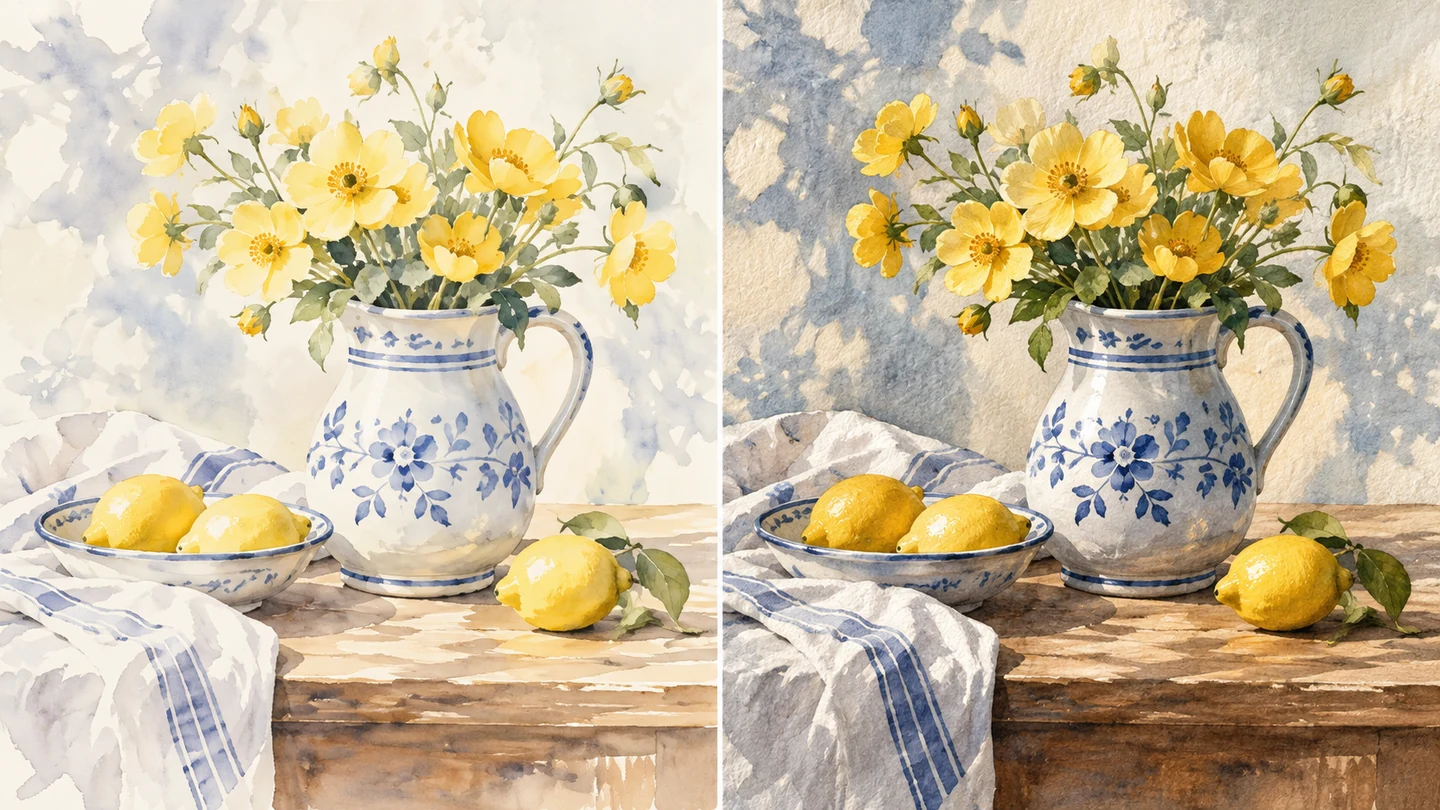
Matched two-panel watercolor studies of the same ceramic jug with yellow flowers: pale loose wash and richer pigments with textured paper

Shape the palette and paper-like finish

Choose an airy pastel direction or richer pigment with visible paper grain. Adjust the prompt to suit a personal card, a floral illustration, or a relaxed landscape study.

Shape the watercolor mood

How to use Photo to Watercolor

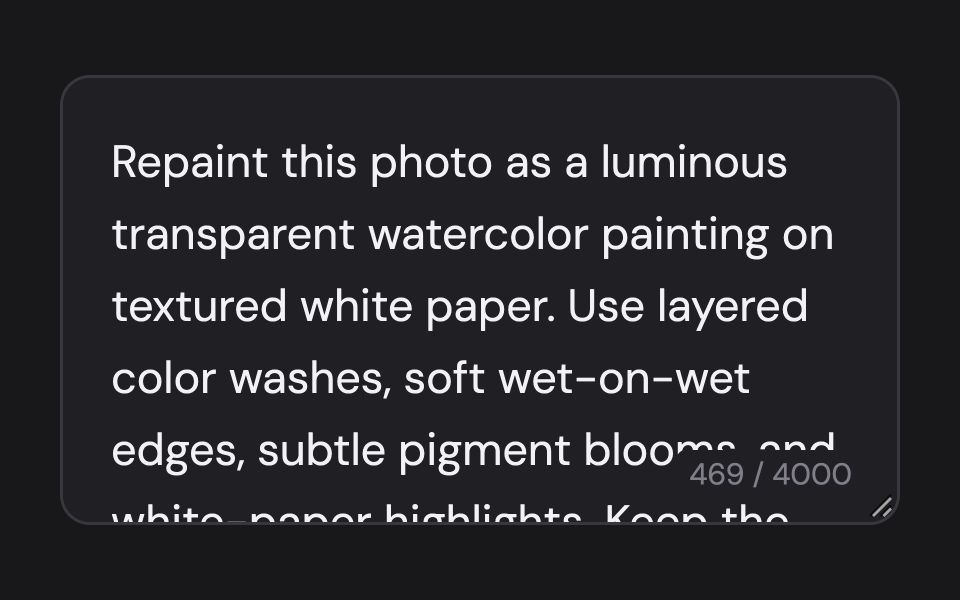
Upload a photo and apply the ready-made watercolor style. The prompt is already filled in and can be edited.

  1. Choose a photo: enlarged view of the relevant workspace control01

    Choose a photo

    Upload one JPG, PNG, or WebP image up to 10 MB. Simple backgrounds and clear colors make useful starting points.

  2. Use the ready-made prompt: enlarged view of the relevant workspace control02

    Use the ready-made prompt

    The prompt is filled in for this style. Keep it as it is and generate, or edit it to adjust the treatment. No writing is required.

  3. Apply and download: enlarged view of the relevant workspace control03

    Apply and download

    Select Apply filter and wait for your result. Check small details, then download it. Google sign-in extends the guest allowance.

Made for your next idea

Ways to use Photo to Watercolor in your creative projects.

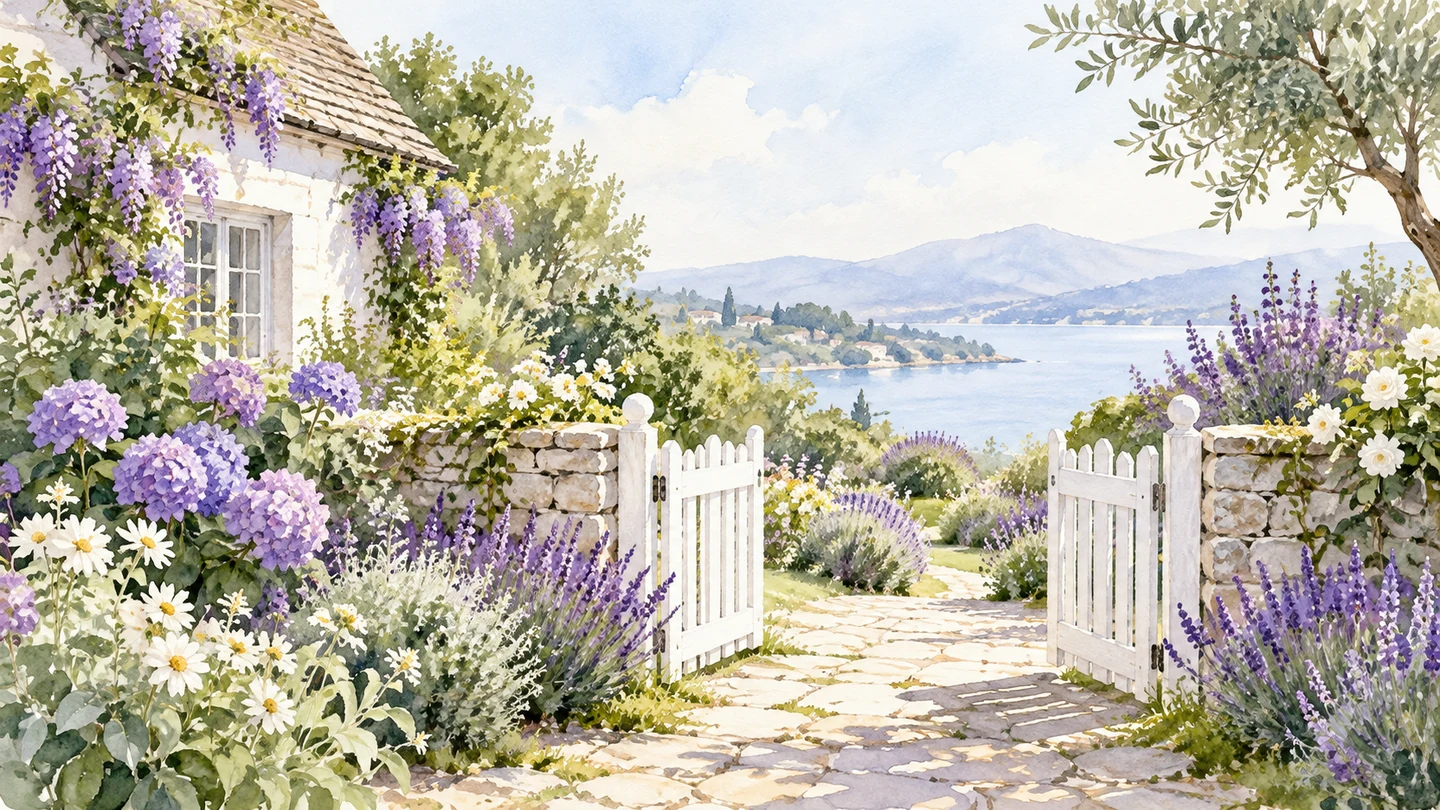
A watercolor illustration of a cottage garden with purple flowers and a white gate, open white space, no text

Greeting-card artwork

Create a soft painted illustration to place in your own card layout. Add wording in your design editor.

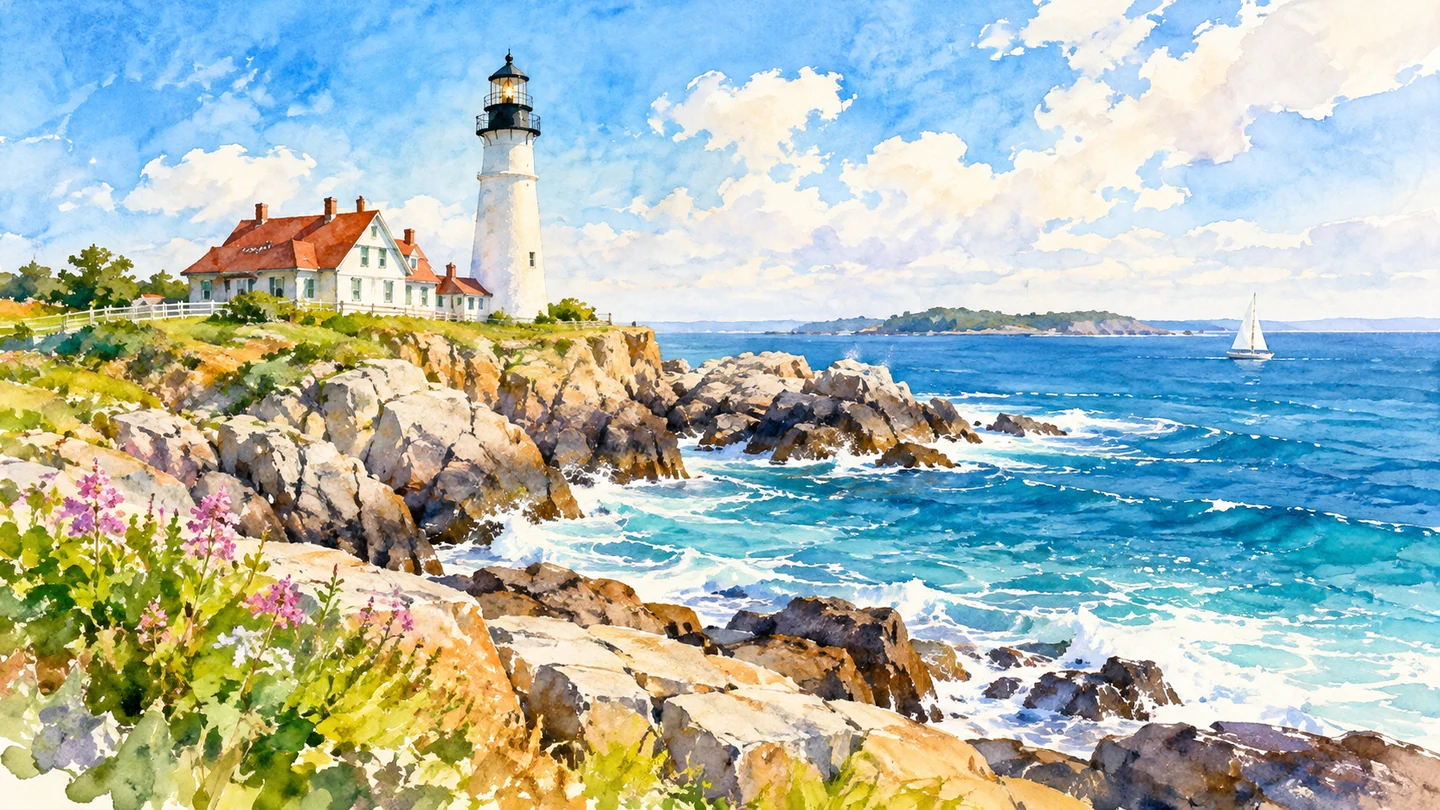
A watercolor travel illustration of a coastal lighthouse and blue sea with loose luminous washes

Travel journal pages

Turn a memorable view into a light painted study for a personal journal.

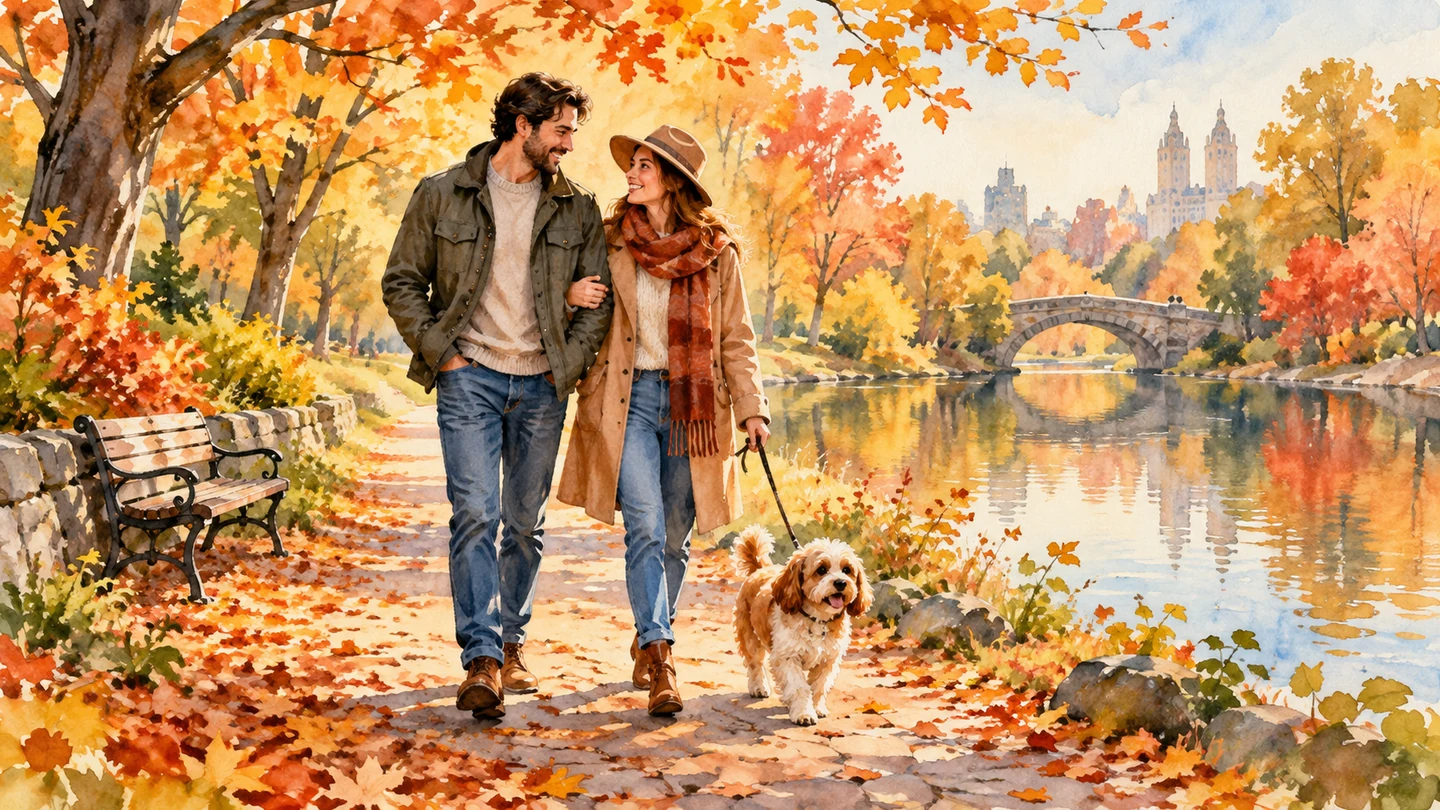
A watercolor painting of an adult couple strolling with a small dog in an autumn park, warm colors

Family gift concepts

Explore a gentle watercolor interpretation of a shared moment before building a gift design.

Why choose
Pizu AI?

Give a favorite subject the softness of watercolor without paints, brushes, or editing software.

Explore the workspace

The softness of watercolor

Guide translucent washes, flowing edges, and paper-like texture with a style-specific prompt.

A palette that fits your subject

Ask for pastel lightness or richer pigment to suit a portrait, pet, or landscape.

Try watercolor without an account

Start with 2 free guest image attempts, shared across Pizu AI image tools.

No brushes or painting setup

Upload your photo and apply the editable watercolor prompt directly in your browser.

Frequently asked questions

How can I convert a photo to watercolor?

Upload a photo and select Apply filter. You can edit the ready-made prompt to describe the palette, paper texture, or looseness of the wash before generating.

How is watercolor different from Photo to Painting?

This page focuses on translucent washes, soft edges, and visible paper. Photo to Painting starts with richer oil-style brushwork and canvas texture.

Will it keep every face or detail unchanged?

No. This is a generated interpretation, so faces, text, and small details may change. A clear source and specific instructions can guide the result but cannot guarantee a match.

Can I print the watercolor result?

You can download the image and check its dimensions before planning a print. This tool does not provide print sizing, upscaling, physical painting, or fulfillment.

Can I try this tool for free?

Yes. You can submit two guest attempts per UTC day, then sign in with Google to continue up to five total daily attempts across Pizu AI tools. Site capacity also applies. Attempts can count even if generation fails. Paid upgrades are not available yet.

What happens to my uploaded photo?

Your photo and instructions are sent to GrsAI for processing. Pizu AI keeps task status and the result link rather than your source photo or prompt. Provider retention follows its own policies. Save the result promptly because links may expire.

Are the examples actual Pizu AI results?

The images on this page are AI-created visual studies, not measured Pizu AI outputs. They show possible creative directions. Your result depends on the source image and instructions and may differ.

Pizu AI

PIZU PRO · COMING SOON

More room for
your imagination.

Looking to create more? Paid plans are on the way.

Pizu AI Pro

For your next big idea
Coming soon

Plan details, pricing and generation allowances will be announced when subscriptions launch.

Checkout is not available yet.

Your free plan stays active. No payment details are collected and no charges will be made.

Ask about upgrades