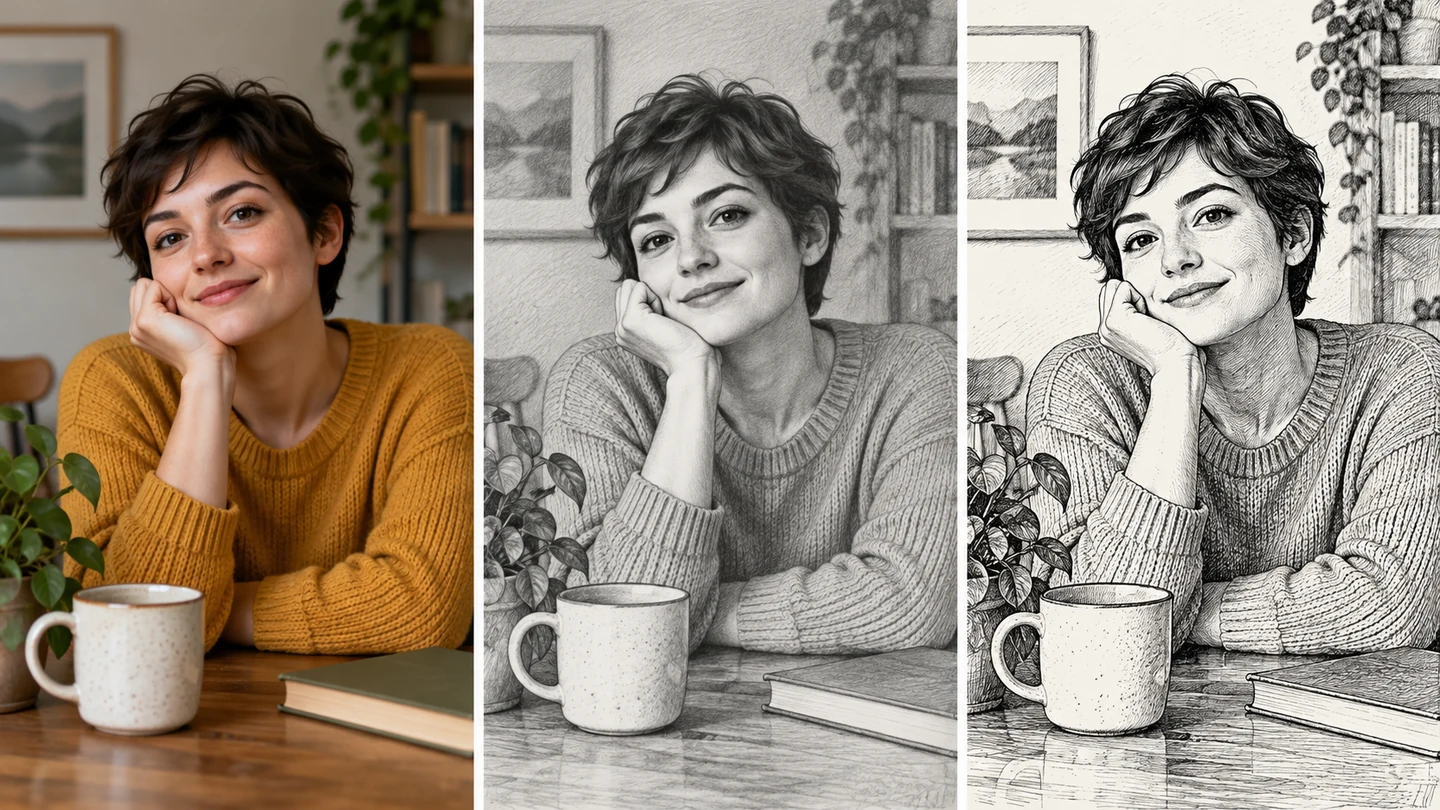
Explore pencil, ink, and cross-hatched looks
Turn a photo into a drawing with the marks you prefer. Start with graphite shading, then edit the prompt to request fine ink, cross-hatching, or colored-pencil detail.
Explore sketch styles
— generations remaining today
Resets daily at 00:00 UTC. Shared across all image tools. Accepted attempts, including failed generations, count toward usage.
Turn your photo into a pencil sketch, ink drawing, or loose art study.
Illustrative style studyFind the right balance of drawing marks, subject detail, and pencil shading for your photo.
Turn a photo into a drawing with the marks you prefer. Start with graphite shading, then edit the prompt to request fine ink, cross-hatching, or colored-pencil detail.
Explore sketch styles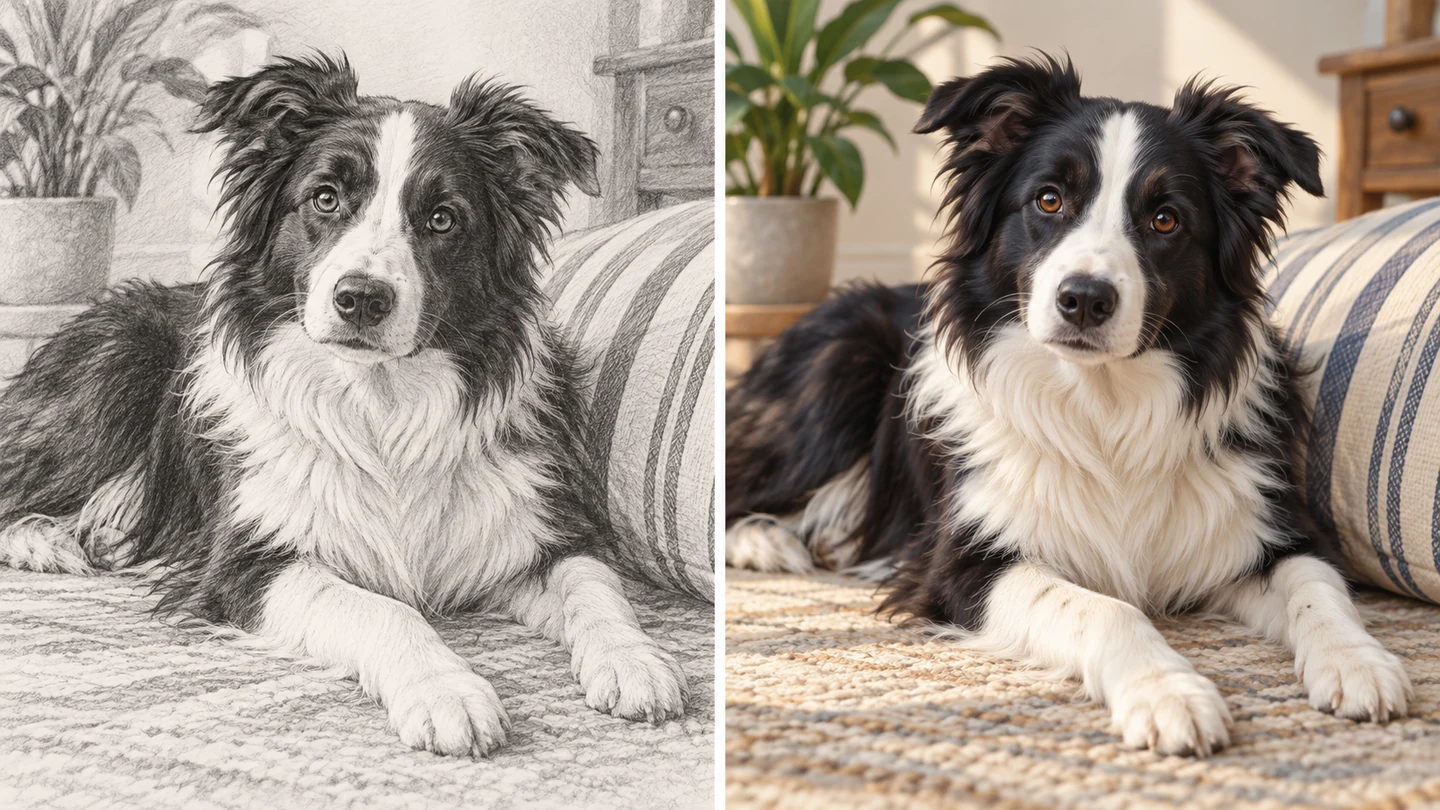
Use a clear portrait, pet photo, or object as the basis for a sketch. Ask for readable fur, facial features, or contours to give the drawing a more considered, hand-drawn character.
Sketch your subject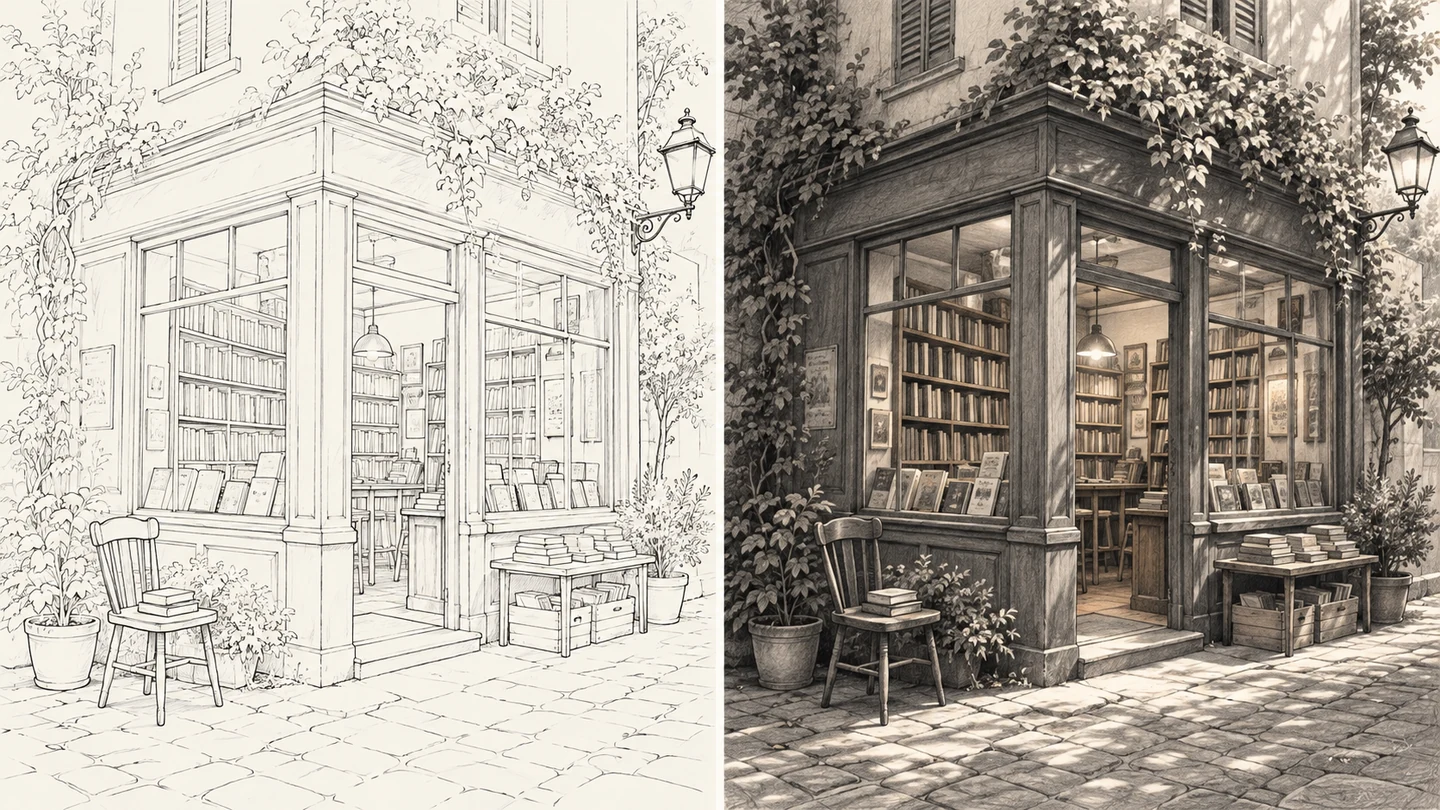
Create a spare line drawing with open space, or a richer pencil study with dark shadows. Describe the amount of detail and background treatment you want before generating.
Set your sketch directionUpload a photo and apply the ready-made sketch style. The prompt is already filled in and can be edited.
 01
Add a JPG, PNG, or WebP image up to 10 MB. A clear subject and good contrast help the drawing read.
 02
The prompt is filled in for this style. Keep it as it is and generate, or edit it to adjust the treatment. No writing is required.
 03
Select Apply filter. Review the generated sketch, then use Download image to save it. Sign in if your guest allowance is used.
Ways to use Photo to Sketch in your creative projects.
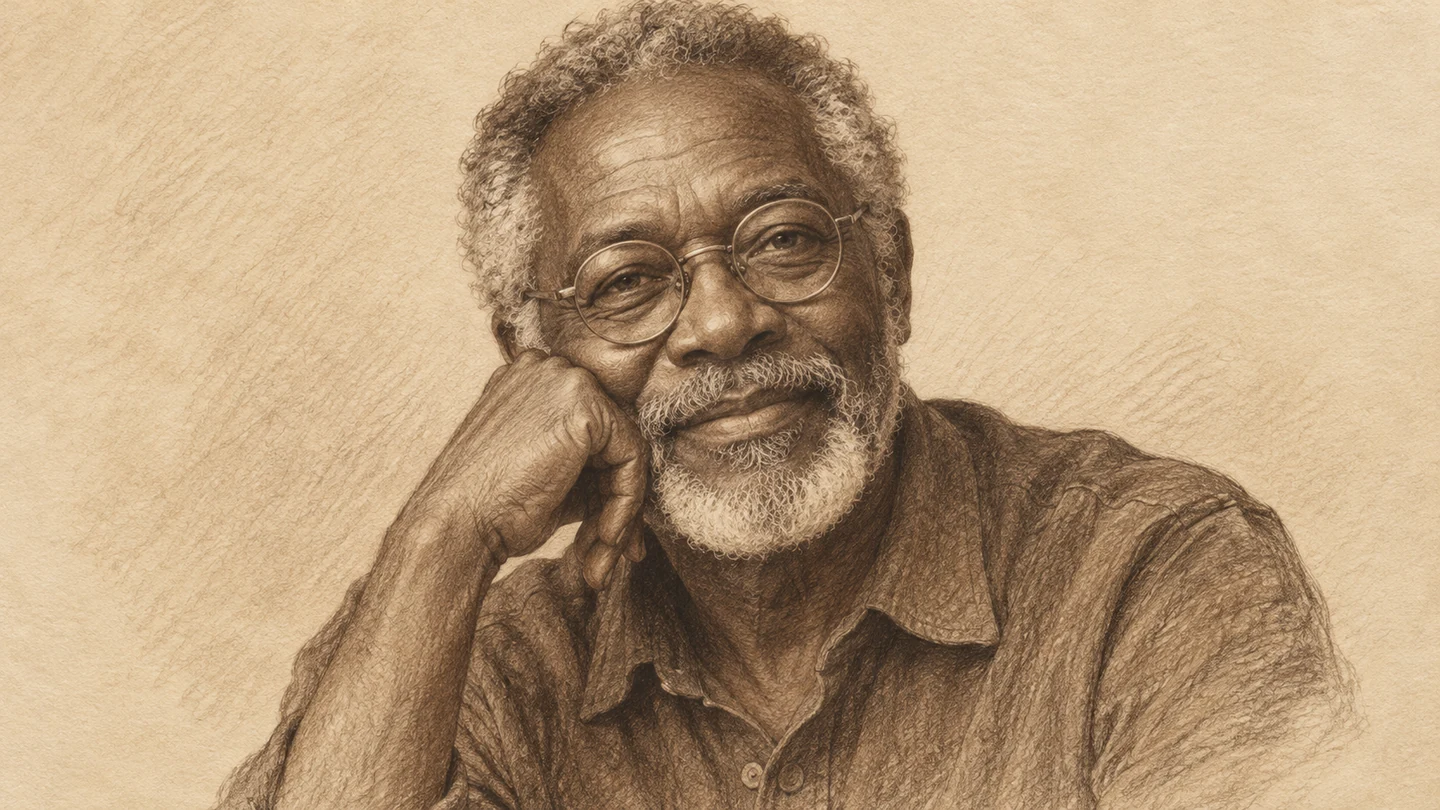
Explore a drawn profile picture with a face and expression that still feel familiar.
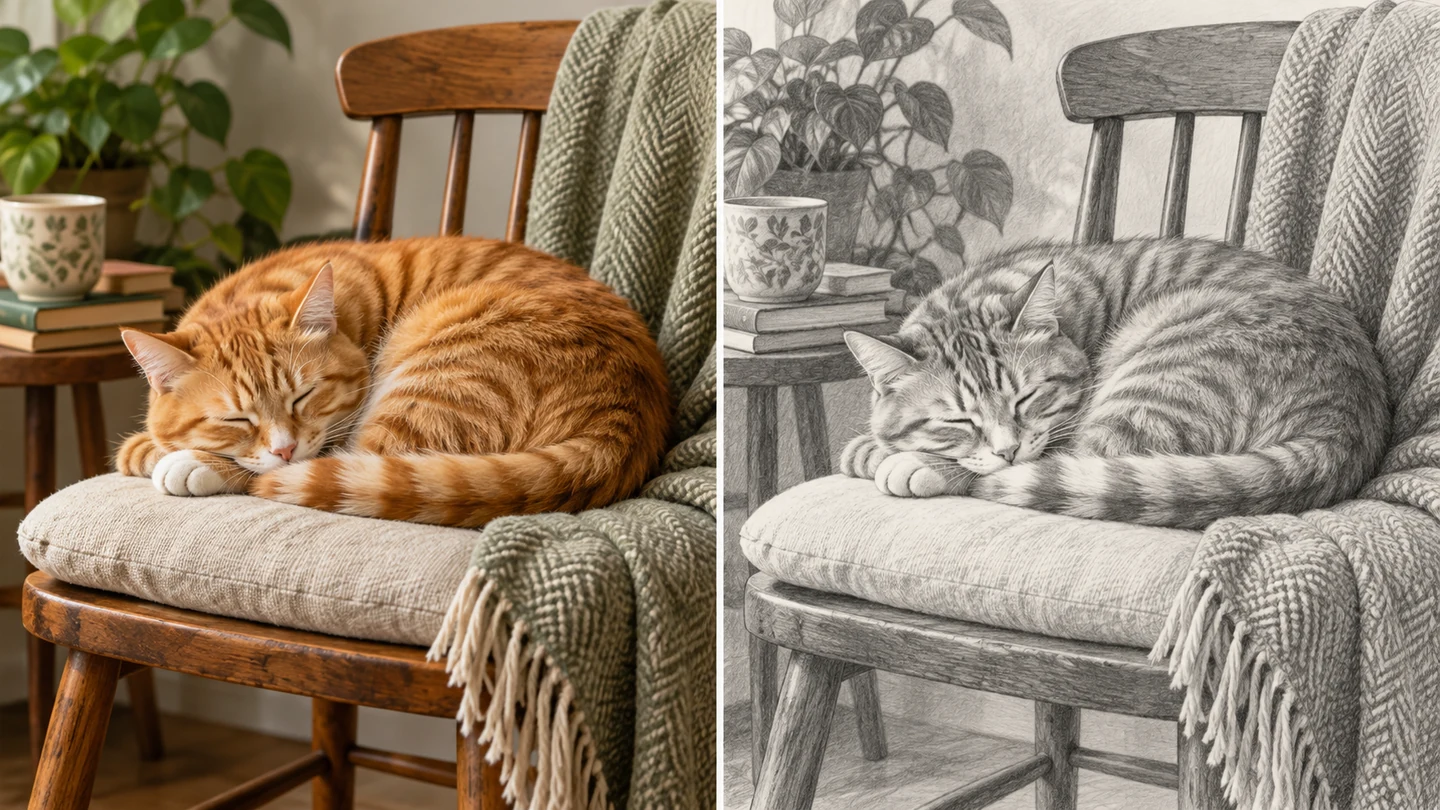
Use a favorite animal photo as the starting point for a personal drawing.
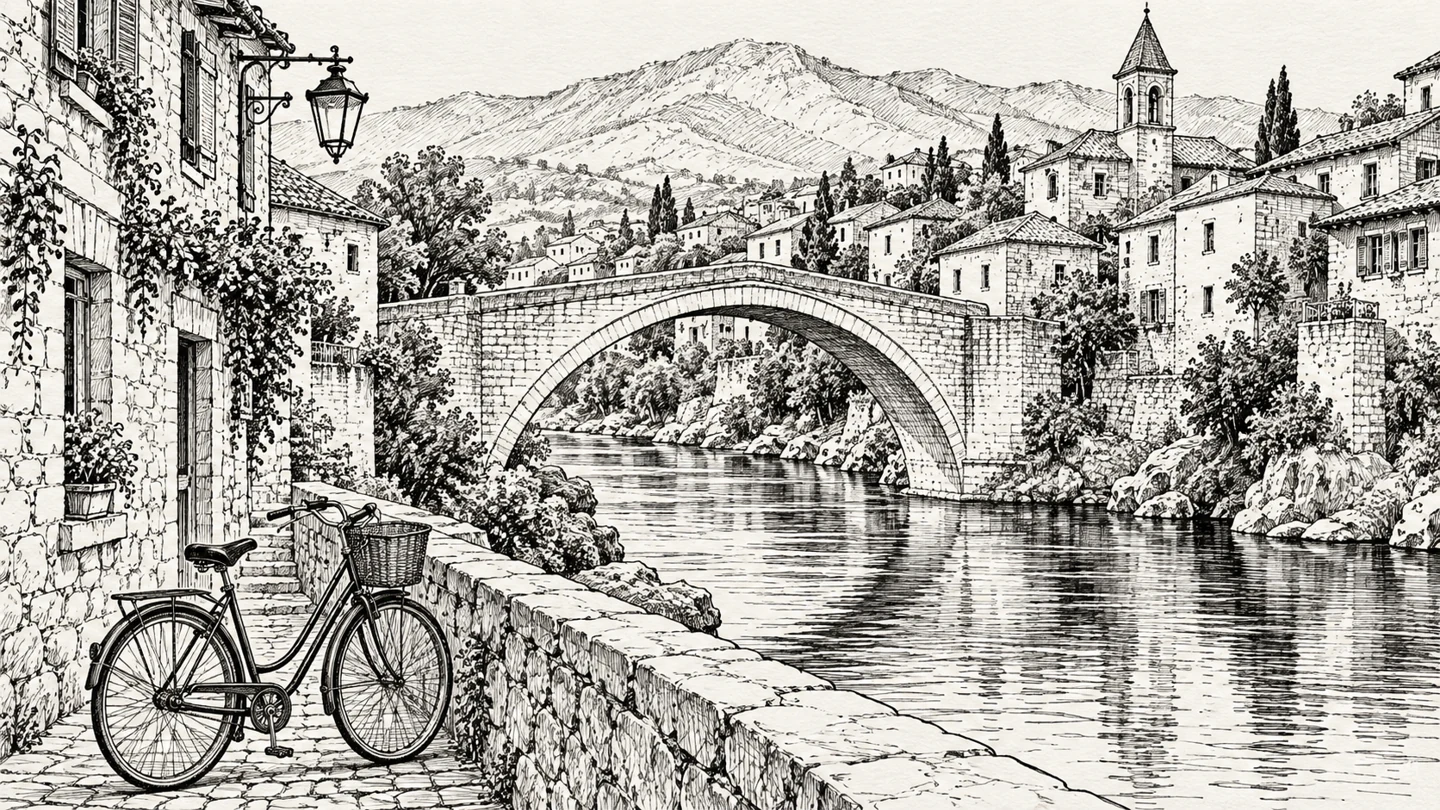
Make a sketch-style travel journal illustration from a meaningful street or building.
Turn a familiar photo into a drawing direction that feels personal, without sketching from scratch.
Explore the workspaceExplore graphite tones, fine contours, and hatching instead of a single generic edge effect.
Start with the editable pencil preset and add the details you care about.
Use the shared 2-attempt guest image allowance to try your photo as a drawing.
Preview the sketch and download PNG or JPG for a personal project.
Upload your photo and select Apply filter for the pencil starting style. Edit the ready-made prompt if you prefer ink, cross-hatching, or a lighter treatment.
It generates a new drawing-style interpretation. It does not trace exact contours or export vector paths. Faces, fine objects, and lettering can change.
You can ask for clear outlines with little shading. The result is a raster image, and completely closed shapes or accurate coloring-page outlines are not guaranteed.
Choose a well-lit photo with a clear subject. Crop crowded scenes beforehand and avoid important details that are too small to read.
Yes. You can submit two guest attempts per UTC day, then sign in with Google to continue up to five total daily attempts across Pizu AI tools. Site capacity also applies. Attempts can count even if generation fails. Paid upgrades are not available yet.
Your photo and instructions are sent to GrsAI for processing. Pizu AI keeps task status and the result link rather than your source photo or prompt. Provider retention follows its own policies. Save the result promptly because links may expire.
The images on this page are AI-created visual studies, not measured Pizu AI outputs. They show possible creative directions. Your result depends on the source image and instructions and may differ.