Pizu AI

Image to Prompt

Turn a reference image into an editable prompt. Copy it, refine it, or create a new image.

Start with an image

Your image is resized in your browser, then sent to our AI provider for analysis.

2 prompt requests per day as a guest · 5 with an account

Your image prompt

Your prompt will appear here

Key Features of Image to Prompt

Describe the visual details, adapt the style, and take your reference into a new creative direction.

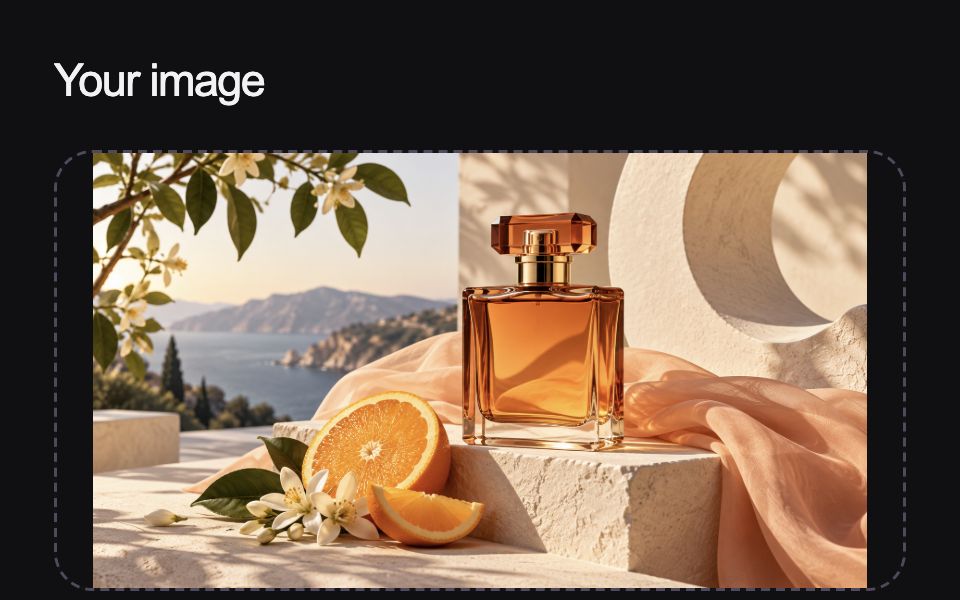
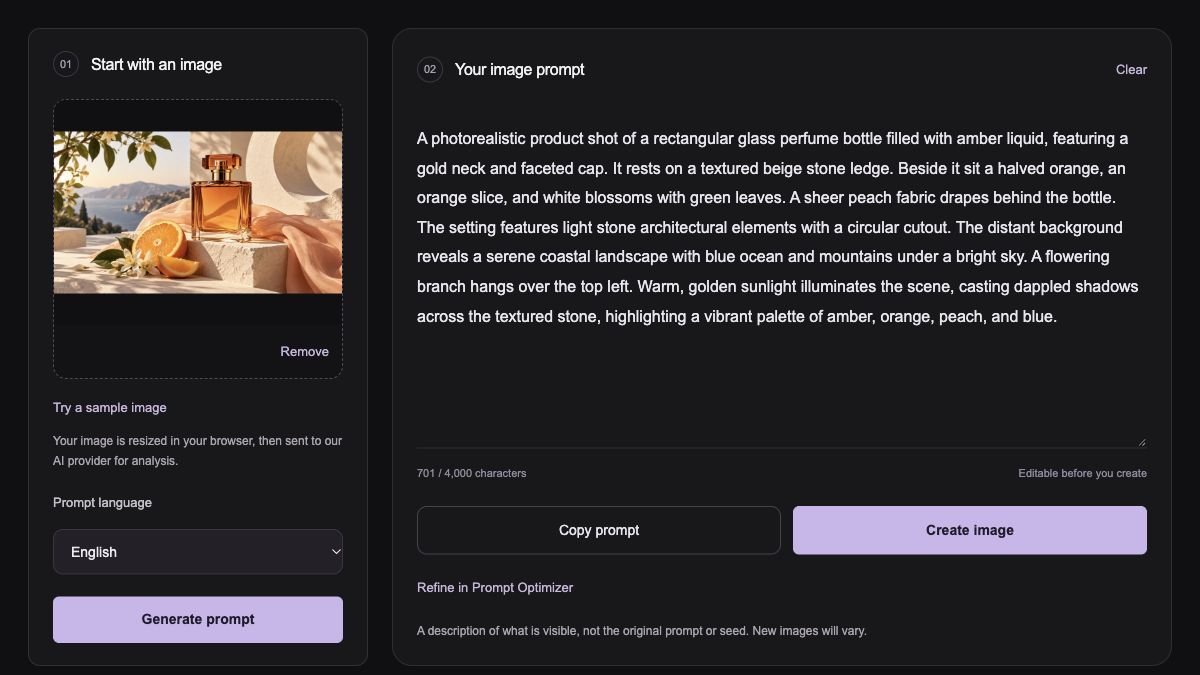
Product reference and an editable description in the Image to Prompt workspace

Turn visual references into detailed image prompts

Extract a useful description of the subject, composition, lighting, and materials from an image. Start with what you can see instead of struggling to name every visual detail yourself.

Describe a reference
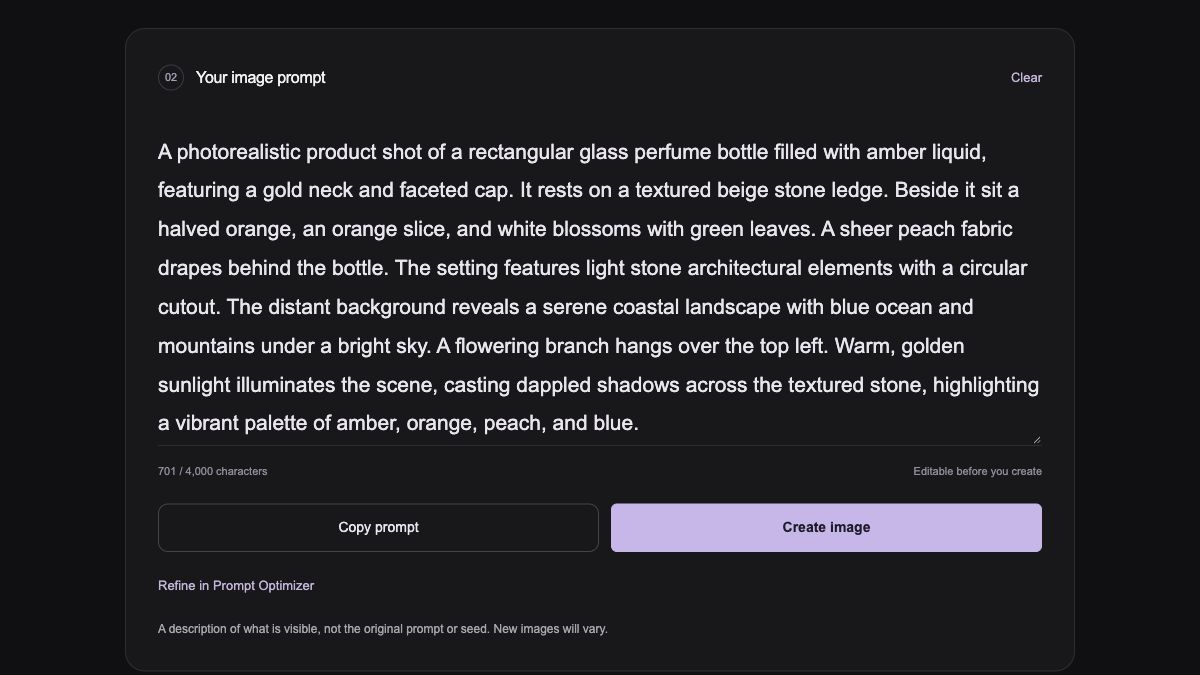
Editable prompt text for changing a reference image’s visual direction

Reuse a visual style with a different subject

Edit the description to keep a reference’s palette, lighting, or atmosphere while changing the subject. Build a new creative direction from the details you like.

Shape your own version
Copy, optimize and create controls below a prompt result

Take your prompt straight into image creation

Copy the description, refine it in Prompt Optimizer, or use Create image to continue in Pizu AI’s generator. Move from a visual reference to an editable prompt in one workflow.

Start a new image

How to use Image to Prompt

Start with a picture. Finish with words you can use.

  1. Upload a reference: enlarged view of the relevant workspace control01

    Upload a reference

    Choose a JPG, PNG, or WebP image up to 10 MB. Use a clear reference with a recognizable subject.

  2. Generate the prompt: enlarged view of the relevant workspace control02

    Generate the prompt

    Choose English or Chinese, then select Generate prompt. The model describes the visible content and visual treatment.

  3. Review and use the words: enlarged view of the relevant workspace control03

    Review and use the words

    Edit any details that need correcting. Copy the prompt, optimize it further, or send it to the image generator.

Made for your next idea

Ways to use Image to Prompt in your creative projects.

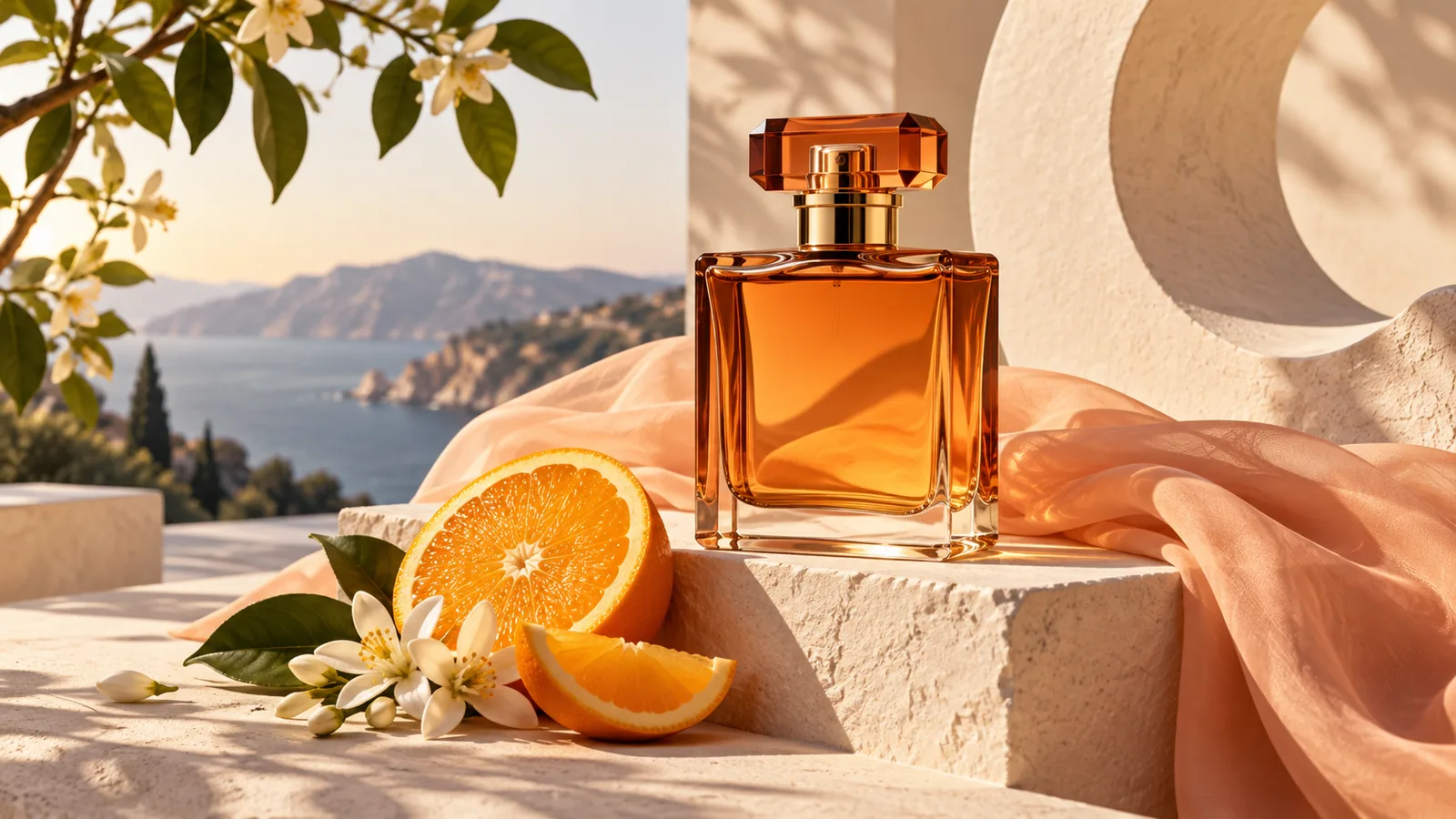
Amber perfume bottle beside citrus on a sunlit stone surface

Product visual references

Describe the materials, light, and setting in a product reference, then change the product details for a new concept.

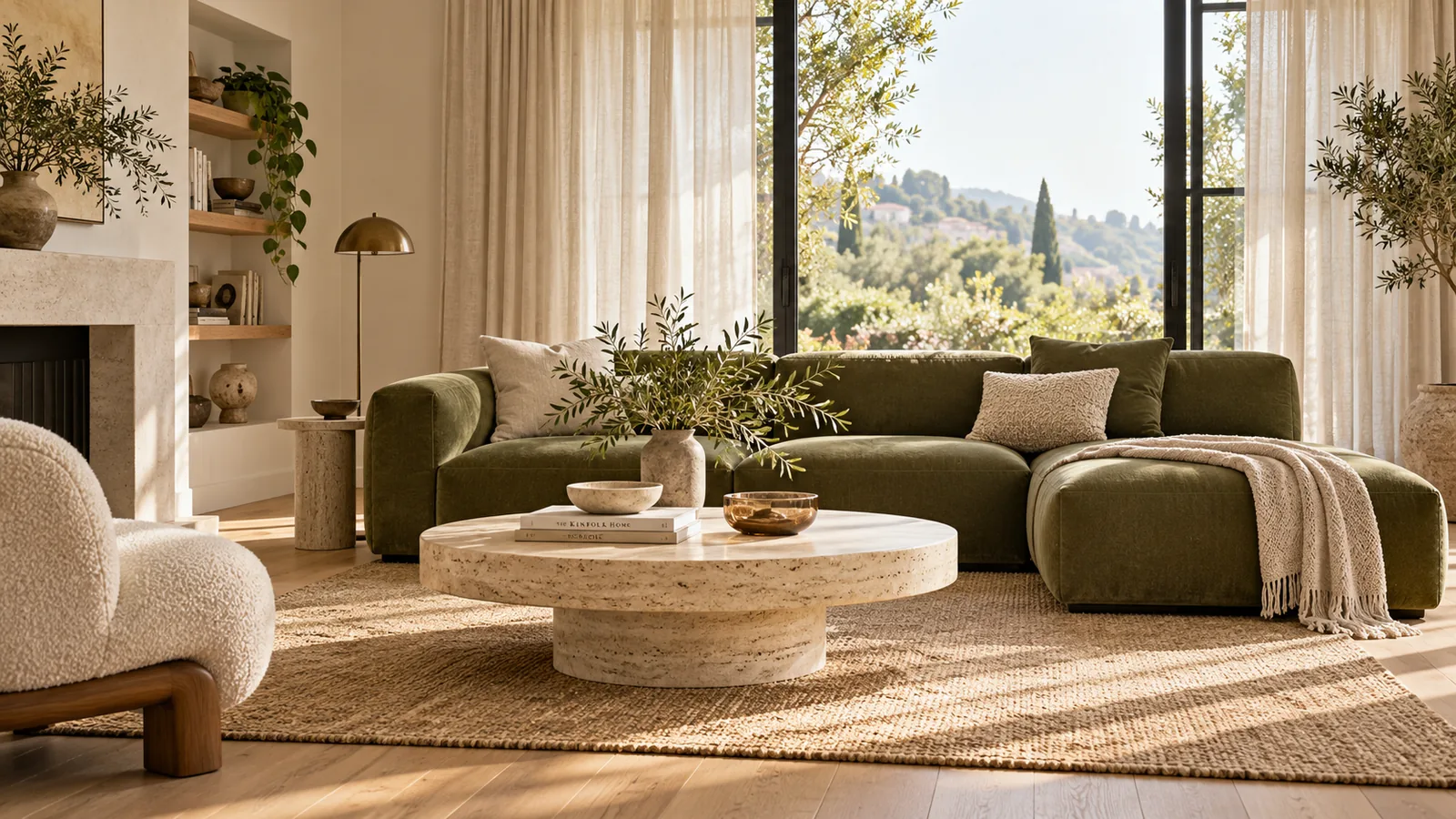
Illustrative room reference for describing interior layout and atmosphere

Interior mood and layout

Put a room’s palette, furniture arrangement, and light into words before exploring a different space.

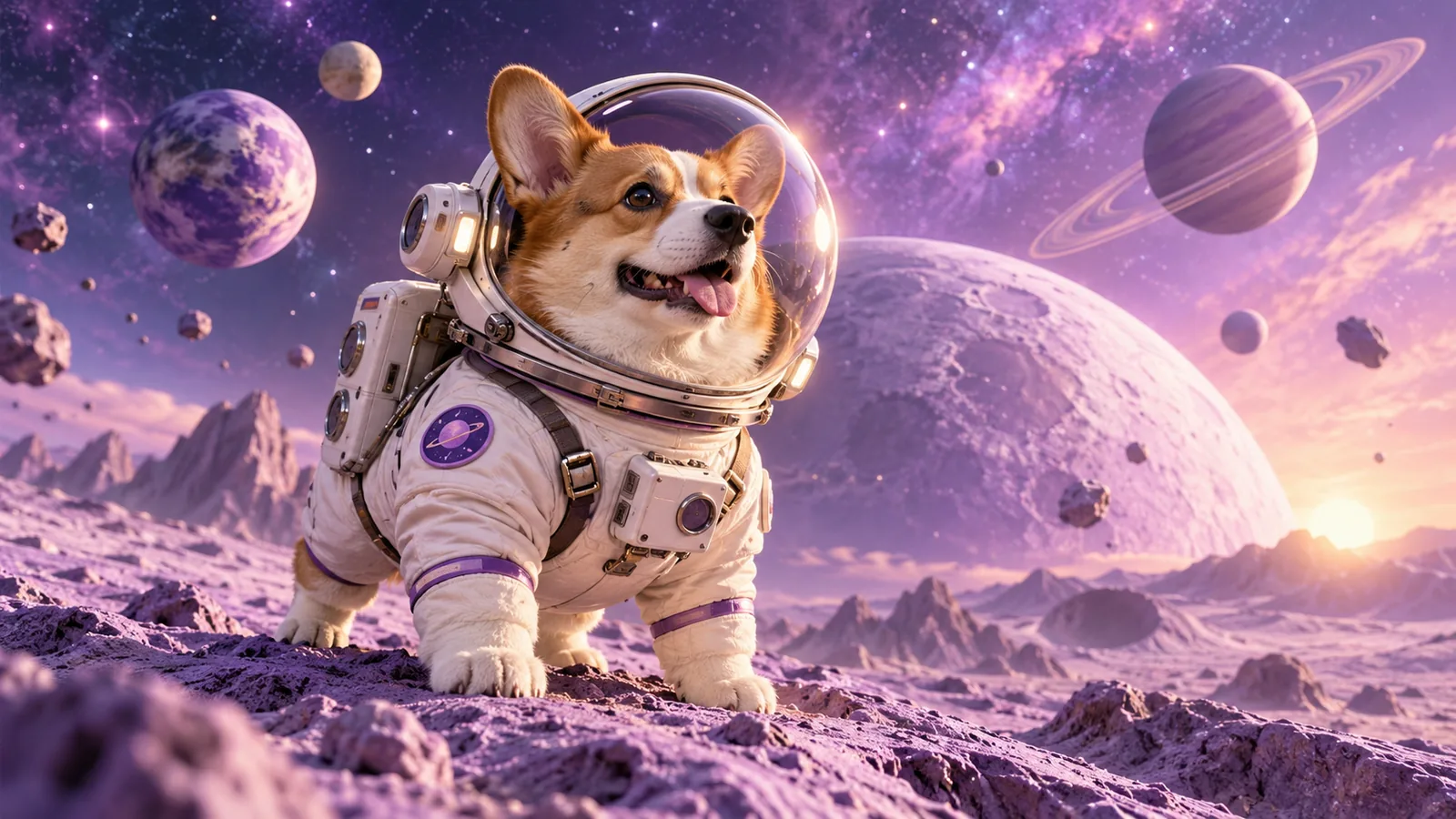
Illustrative animal character concept for a creative prompt

Illustration directions

Describe an animal character, its environment, and its illustrated treatment as a starting point for another story idea.

Why choose
Pizu AI?

Understand a reference image, find the words for its style, and make the prompt your own.

Explore the workspace

Useful visual detail in words

Describe lighting, materials, subject, and composition from a reference image.

English or Chinese output

Choose the prompt language before generating and edit the result afterward.

Try it free without signup

Start with 2 guest prompt requests, shared with Prompt Optimizer.

An editable starting point

Copy or refine the description to create a new direction. It does not recover an image’s original prompt.

Frequently asked questions

Can Image to Prompt recover the original prompt?

No. It writes a new description from what is visible in the image. It cannot recover the original wording, random seed, model settings, or editing history. Review the text before using it.

Which images can I upload?

Upload a JPG, PNG, or WebP image up to 10 MB. Large images are resized in your browser before analysis. Clear subjects and readable details give the model more useful information than a blurry or crowded reference.

Which languages are available?

You can choose English or Chinese for the generated prompt. The returned text is editable. Inspect names and any wording that should appear exactly in a new image.

Can I create a new image from the prompt?

Yes. Create image opens Pizu AI’s AI Image Generator and starts generating with your prompt, using your available image allowance. Only the prompt text is transferred. To supply the original picture as visual guidance, use Image to Image and add the reference there. New images may differ from your reference.

How many prompts can I generate?

Guests can make up to 2 accepted prompt requests per UTC day. Signed-in accounts can make up to 5, including linked guest attempts. Image to Prompt and Image Prompt Optimizer share this allowance, subject to site capacity. Image generation has a separate allowance. Failed accepted requests may count.

What happens to my uploaded image and result?

Your image is resized in your browser and sent to GrsAI for analysis. Pizu AI does not save the uploaded image in its prompt database. Results are cached for retry protection; entries older than 24 hours are removed on later prompt requests. Text drafts and results also stay in your browser session until cleared. See the Privacy Policy for provider handling.

Pizu AI

PIZU PRO · COMING SOON

More room for
your imagination.

Looking to create more? Paid plans are on the way.

Pizu AI Pro

For your next big idea
Coming soon

Plan details, pricing and generation allowances will be announced when subscriptions launch.

Checkout is not available yet.

Your free plan stays active. No payment details are collected and no charges will be made.

Ask about upgrades