Turn a rough idea into a clearer image prompt
Expand short notes into a connected description of the subject, setting, composition, and visual style. Spend less effort organizing the wording before trying your idea.
Organize your idea
— generations remaining today
Resets daily at 00:00 UTC. Shared across all image tools. Accepted attempts, including failed generations, count toward usage.
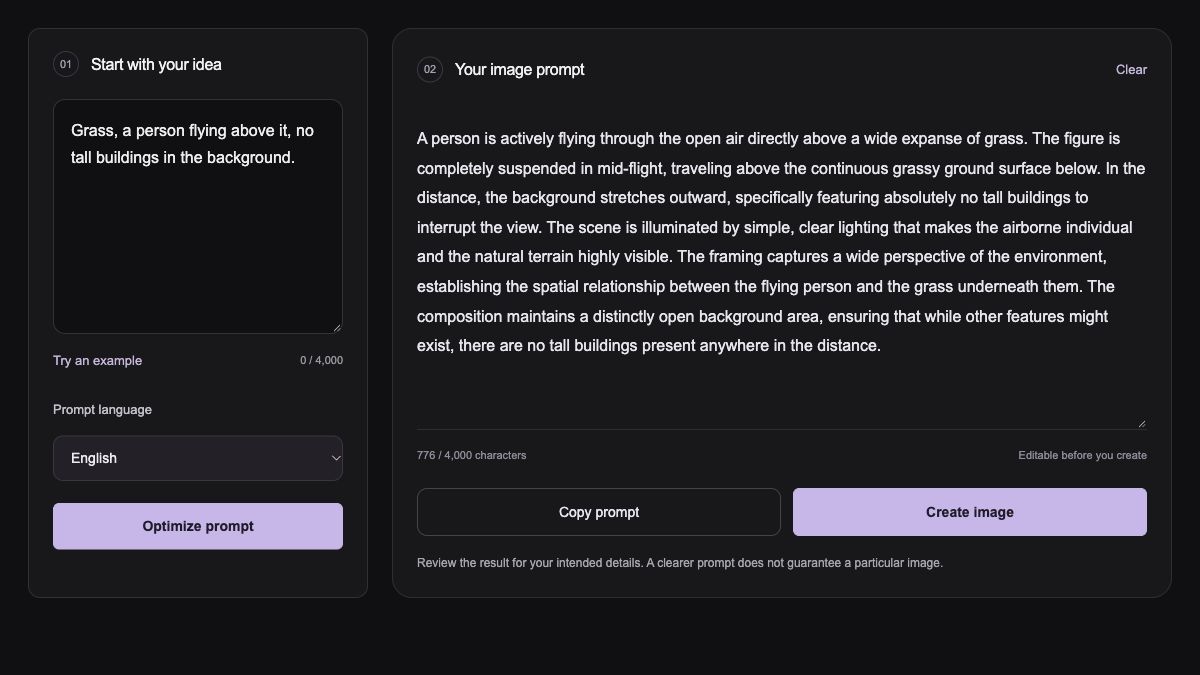
Turn rough ideas into a clear image prompt. Keep your direction, edit the details, and create when you are ready.
Organize rough ideas, clarify your requirements, and prepare a prompt you can edit and use.
Expand short notes into a connected description of the subject, setting, composition, and visual style. Spend less effort organizing the wording before trying your idea.
Organize your idea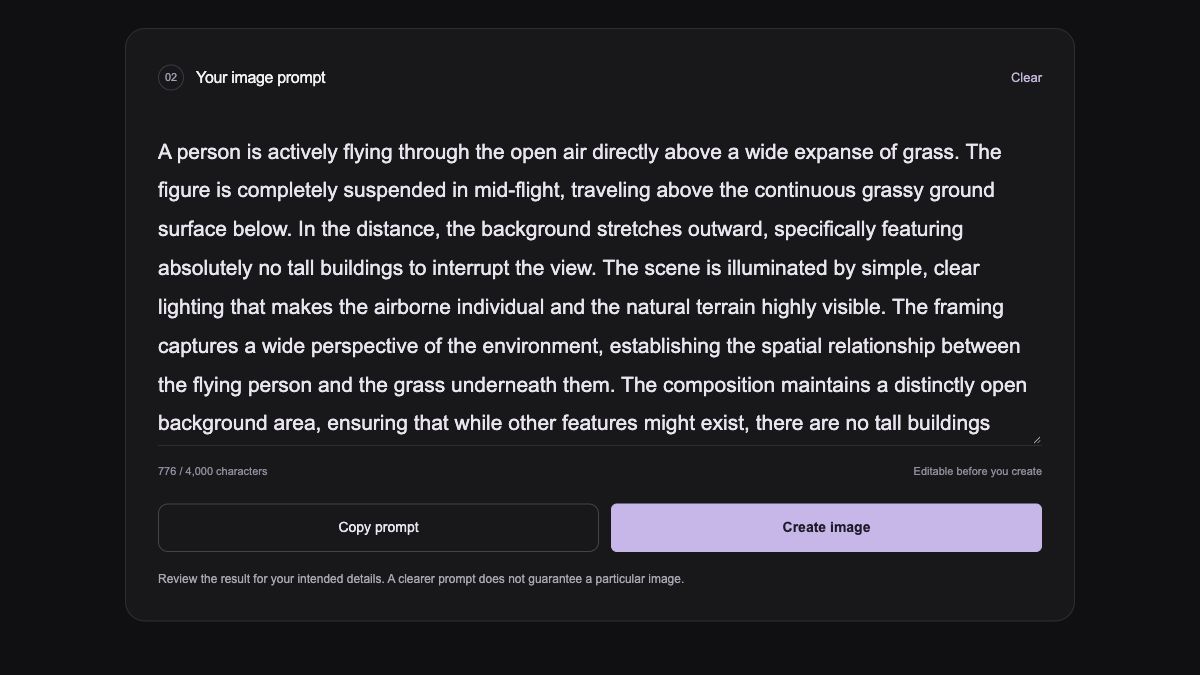
Include the subjects, actions, exclusions, and quoted text that matter to your image. Review and edit the rewritten prompt so the final direction still reflects your idea.
Refine your direction
Make final edits in the prompt field, copy the text for another tool, or use Create image to continue in Pizu AI. Your improved prompt stays accessible for further changes.
Try your promptFrom rough words to a prompt you are ready to use.
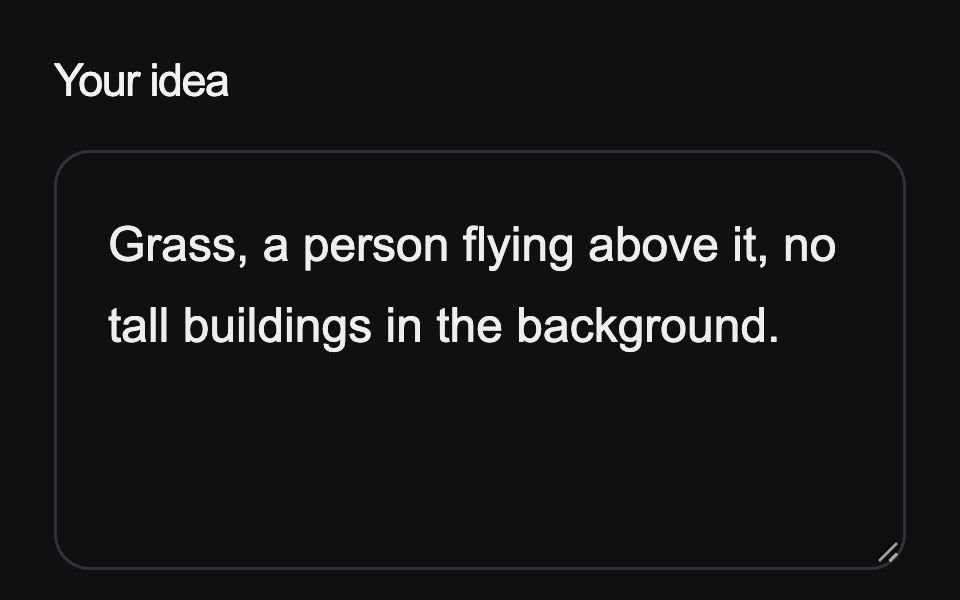 01
Enter a few phrases or paste an existing image prompt, up to 4,000 characters. Include anything that must appear or stay out.
 02
Choose English or Chinese, then select Optimize prompt. Wait for the rewritten description to appear in the editor.
 03
Check the scene and constraints, make your own edits, then copy the prompt or open it in the image generator.
Ways to use Image Prompt Optimizer in your creative projects.
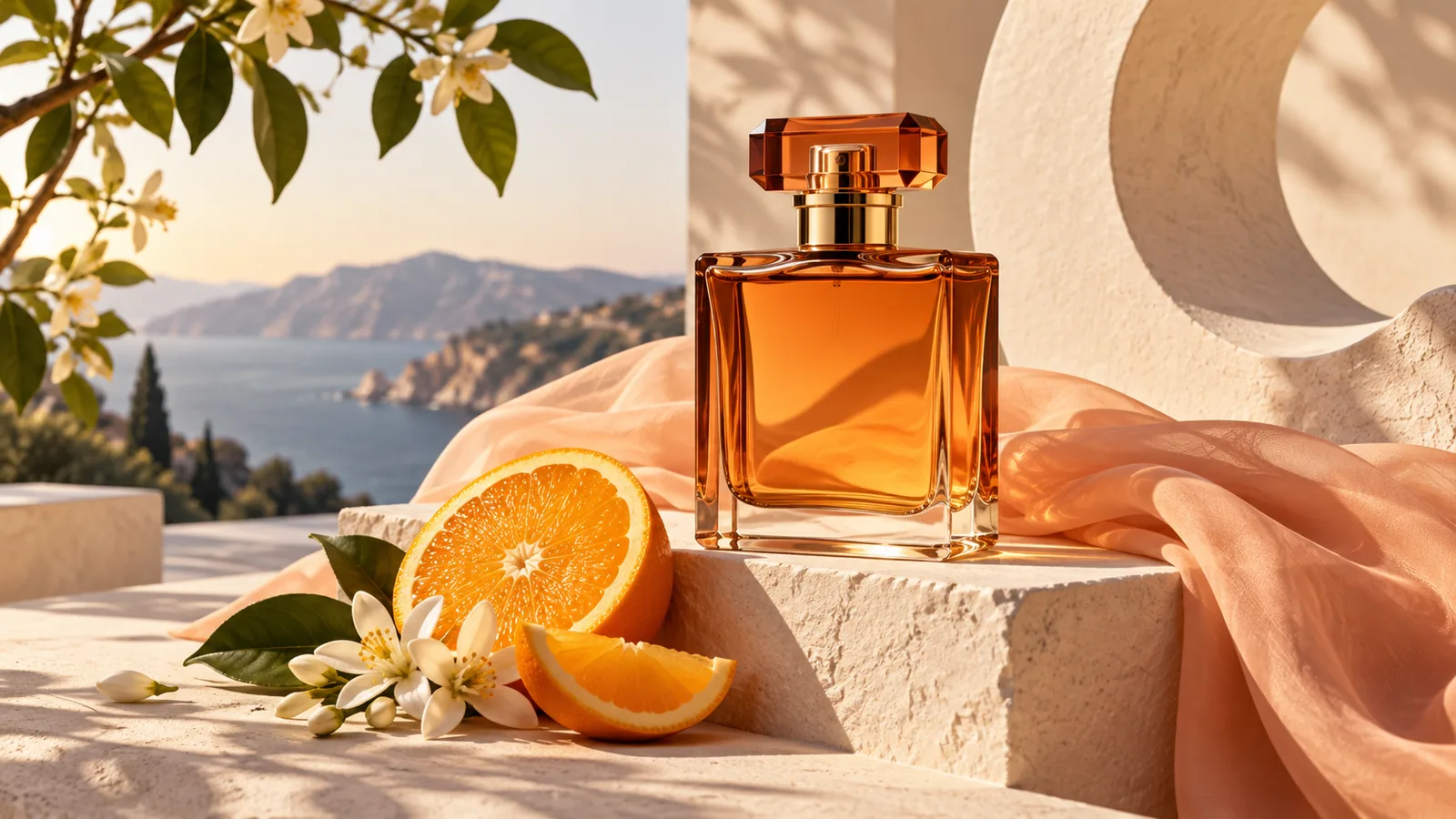
Turn notes about material, backdrop, and light into a prompt for a product concept. Add exact label wording when it matters.
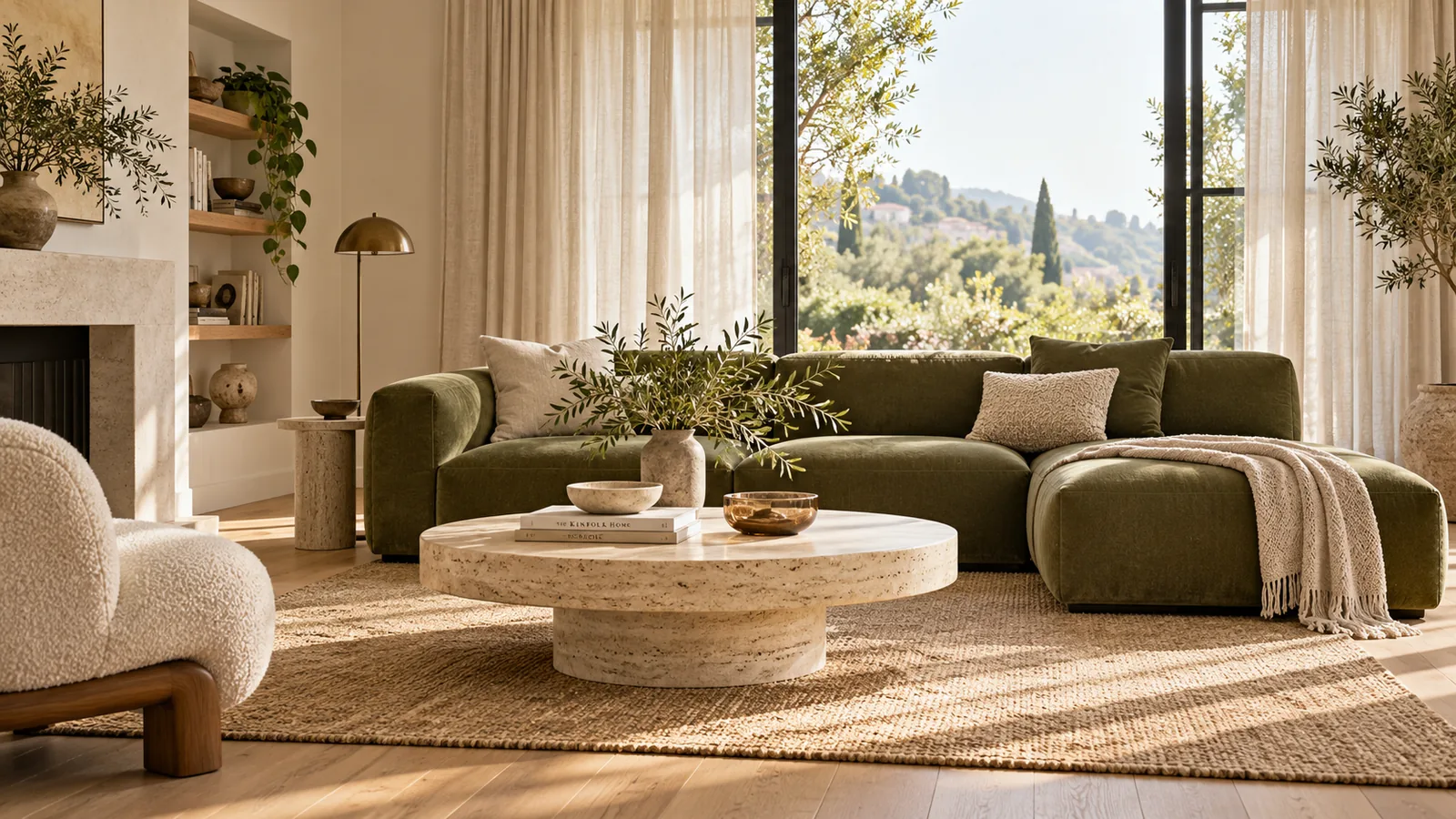
Organize a list of changes to a space and specify the layout or objects that should remain when you use a reference in Image to Image.
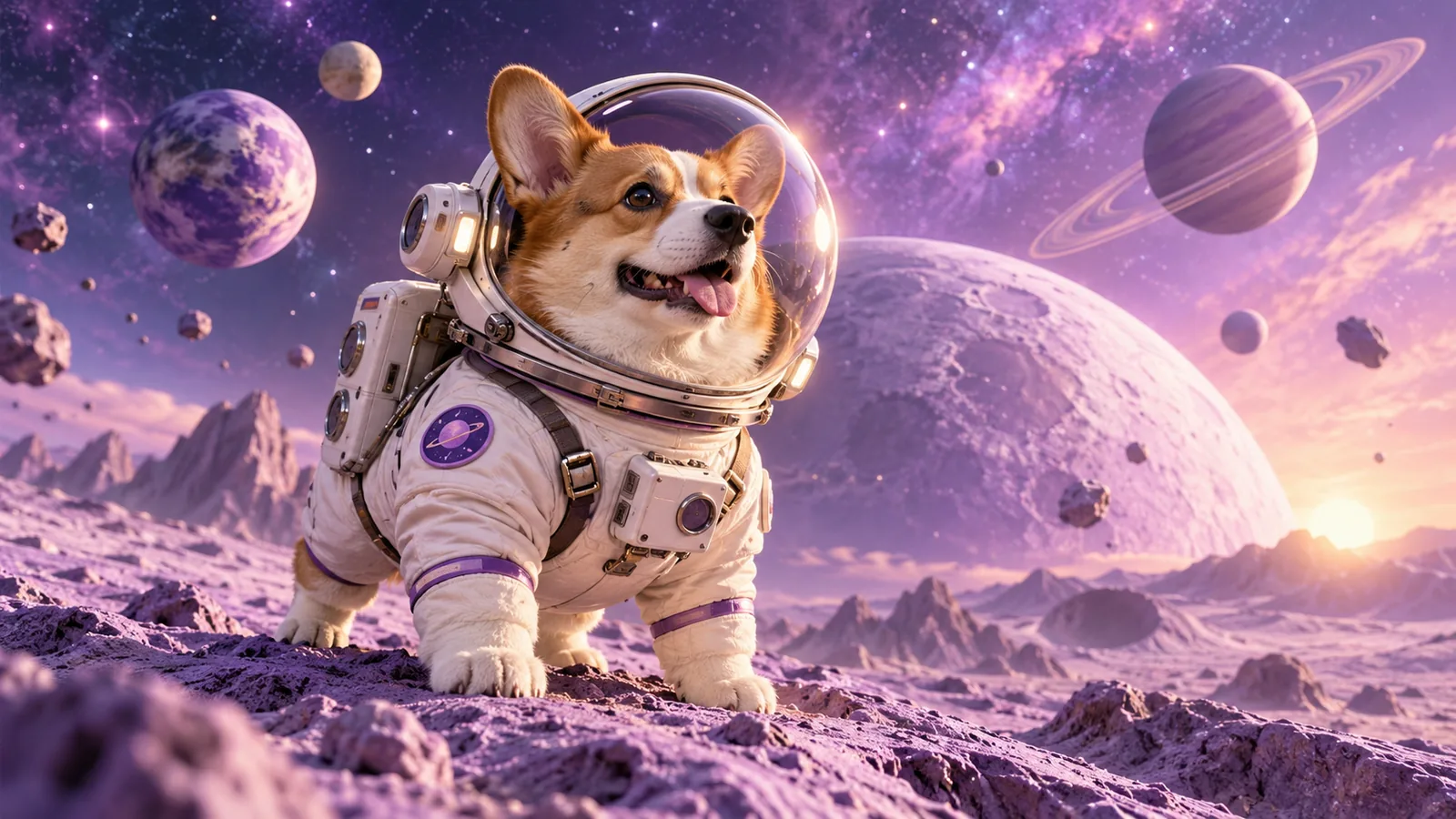
Connect an animal character, an unusual setting, and a clear action into one description for your next visual story.
Give your image idea clearer wording before you spend time generating.
Explore the workspaceTurn rough notes into a connected visual description with clearer scene details.
Include what to show and what to avoid, then review the editable result.
Try 2 requests without an account, shared with Image to Prompt.
Copy it into another tool or continue to Pizu AI’s image generator from the result.
Yes. Enter a subject, action, or setting in short phrases, or paste an existing prompt. You can use up to 4,000 characters. Details such as what must stay out of the scene help define your intended result.
It is instructed to retain explicit subjects, actions, counts, exclusions, and quoted text while clarifying the scene. Models can still miss or infer details, so review the editable result before using it. If a style is essential, state it in your original idea.
Choose English or Chinese before optimizing. Exact text you want rendered in the image should be quoted in your input and checked carefully in the result.
No. A clearer prompt can make your intentions easier to express, but image results also depend on the model, settings, and interpretation. Check the output and revise one detail at a time. This tool does not test or score generated image quality.
Image Prompt Optimizer and Image to Prompt share up to 2 accepted requests per guest per UTC day, or 5 per signed-in account including linked guest attempts, subject to site capacity. Failed accepted requests may count. These limits are separate from image-generation attempts.
Yes. Edit the result, select Copy prompt, or choose Create image to open Pizu AI’s AI Image Generator and start generating with your prompt. Image generation uses your available image allowance. If you want a prompt from an existing picture instead, start with Image to Prompt.