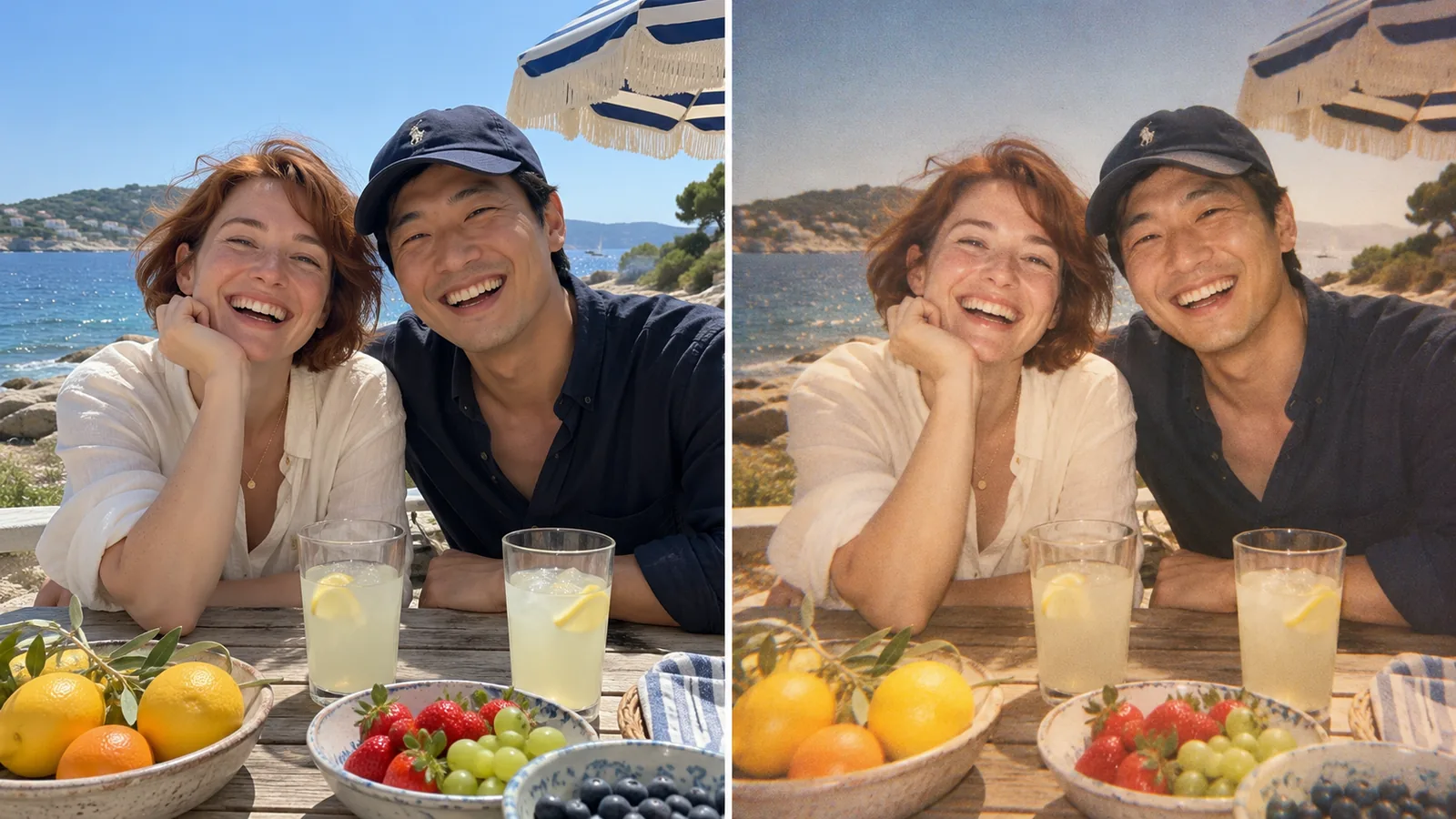
Bring disposable-camera character to your photos
Explore the combination that makes a snapshot feel nostalgic: warm film color, visible grain, soft highlight glow, and direct-flash lighting. Start from the ready-made 90s prompt.
Try the 90s look
— generations remaining today
Resets daily at 00:00 UTC. Shared across all image tools. Accepted attempts, including failed generations, count toward usage.
Give today’s photos the feeling of a 90s snapshot.
Retro style studyRediscover the warmth, grain, and imperfect glow of a 90s snapshot.
Explore the combination that makes a snapshot feel nostalgic: warm film color, visible grain, soft highlight glow, and direct-flash lighting. Start from the ready-made 90s prompt.
Try the 90s look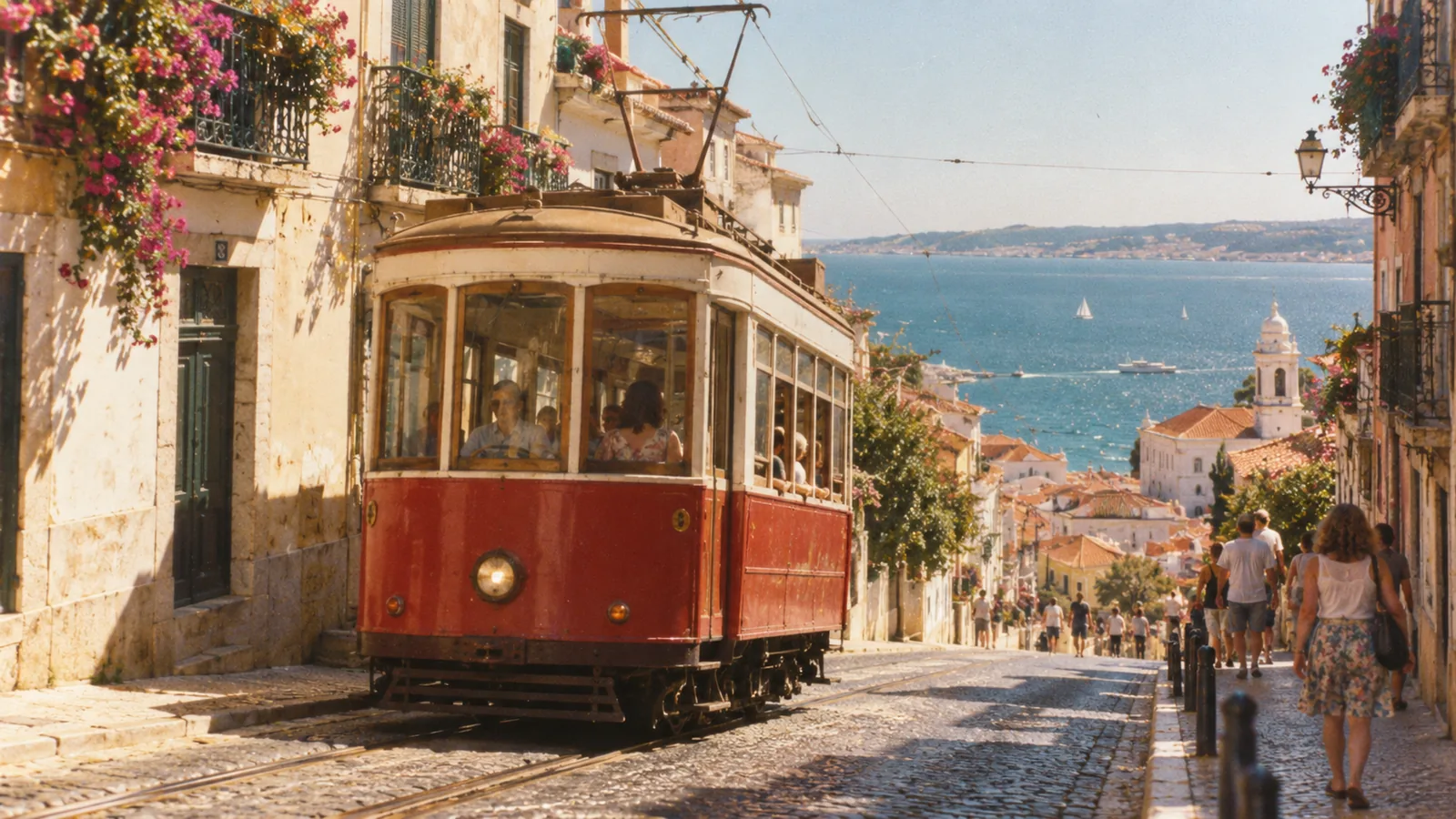
Give streets, seaside trips, and everyday scenes a faded-film mood. Use your existing photo as the starting point for a nostalgic travel diary or social post.
Restyle a travel photo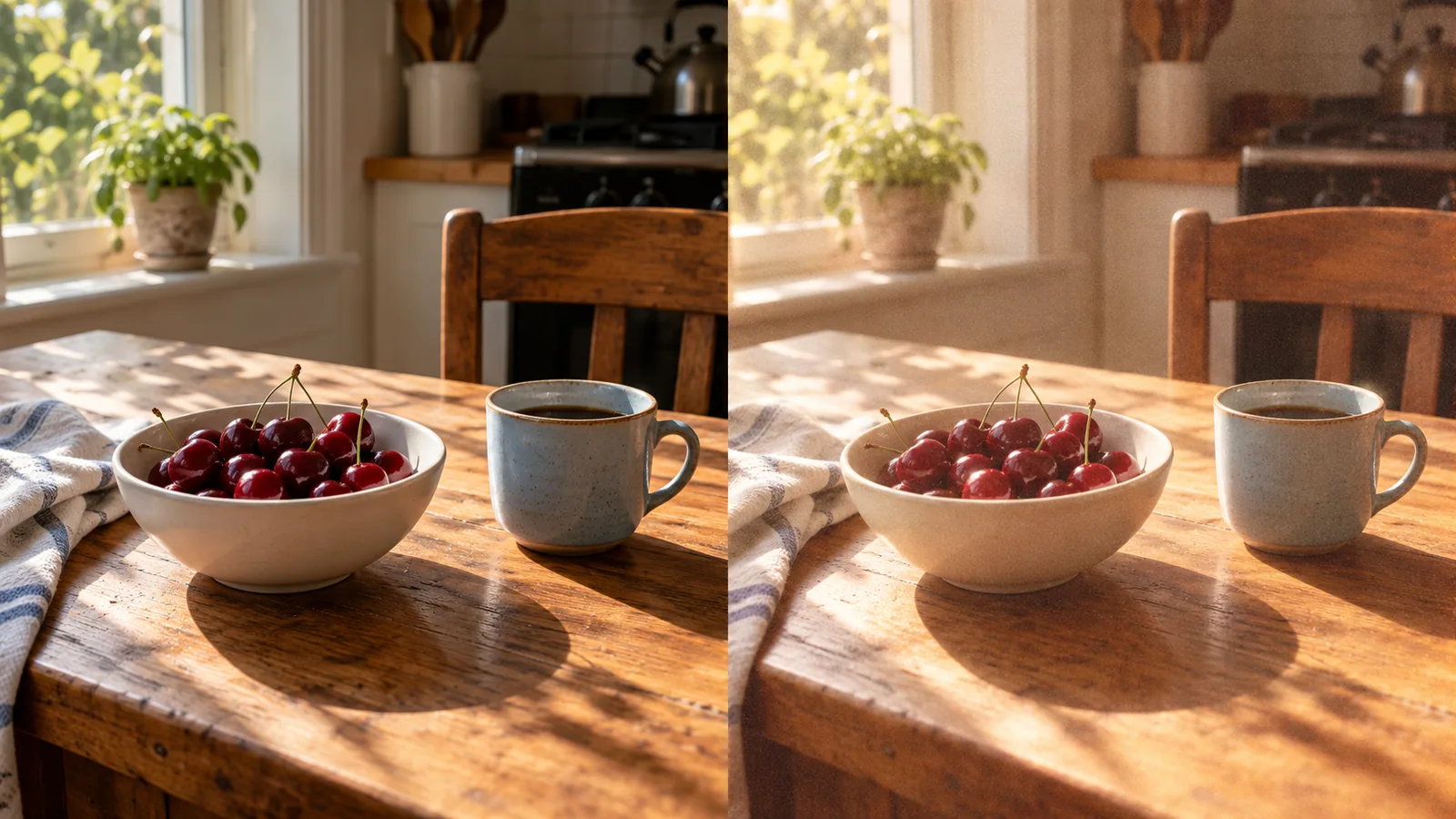
Personalize the retro prompt with fine grain and gentle warmth, or ask for deeper fading and more pronounced glow. Adjust the mood without learning a photo editor’s color curves.
Shape your retro effectUpload a photo and apply the ready-made 90s film style. The prompt is already filled in and can be edited.
 01
Upload a clear JPG, PNG, or WebP image up to 10 MB. Portraits, groups, and scenery all provide useful starting points.
 02
The prompt is filled in for this style. Keep it as it is and generate, or edit it to adjust the treatment. No writing is required.
 03
Sign in and generate. Check faces and small details, then download the version you want to save.
Ways to use 90s Retro Filter in your creative projects.
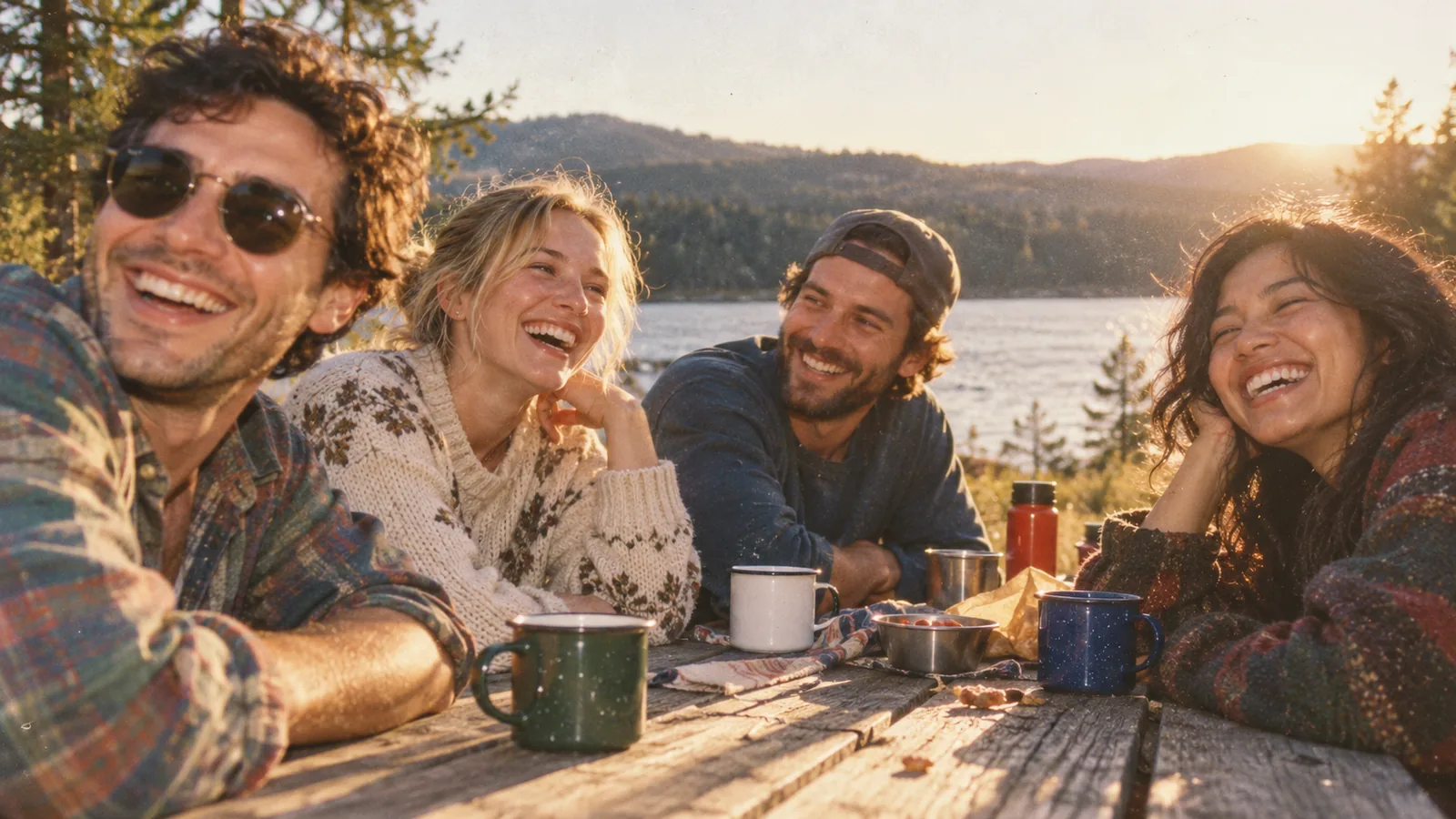
Give a photo with friends the feel of a nostalgic album page.
Explore a film-inspired direction for a favorite street or holiday scene.
Restyle a small still life for a personal moodboard or social post.
Explore nostalgic film character without manual grain layers or complicated color adjustments.
Explore the workspaceCombine film-inspired color, grain, glow, and flash direction in one editable prompt.
Start with the 90s preset and describe changes in plain language.
Use 2 guest image attempts shared across image tools, without signing up.
Download PNG or JPG and choose a smaller file-size target when you need it.
It is a photographic style inspired by film and disposable cameras: warm or faded colors, visible grain, flash, and softer highlights. Pizu AI generates a new interpretation of your photo.
No. This is a generative edit, not a pixel-preserving color overlay. Faces, text, and objects can change, so review the result carefully.
Describe a subtle or stronger effect in the instructions. For example, ask for fine grain and slight warming, or more faded colors and visible flash. There is no numerical intensity slider.
The starting direction focuses on photographic treatment. Ask to keep clothes and objects unchanged, or specify a date-stamp detail if desired. Exact preservation and text accuracy are not guaranteed.
Yes. During beta, each signed-in account can submit up to 5 generation attempts per UTC day across Pizu AI tools, subject to a shared site limit. An attempt may count even if generation fails. No paid plan is currently offered.
Your photo and instructions are sent to GrsAI to generate the image. Pizu AI stores task status and the result link, not your source photo or prompt. Provider retention follows its own policies. Download results promptly because links may expire.
The examples are AI-created visual studies prepared for this page. They illustrate possible directions; your generated result will depend on your source image and instructions.