Pizu AI

80s Filter

Step into an 80s portrait with fuller hair, vintage styling, and soft film color.

617 / 4000

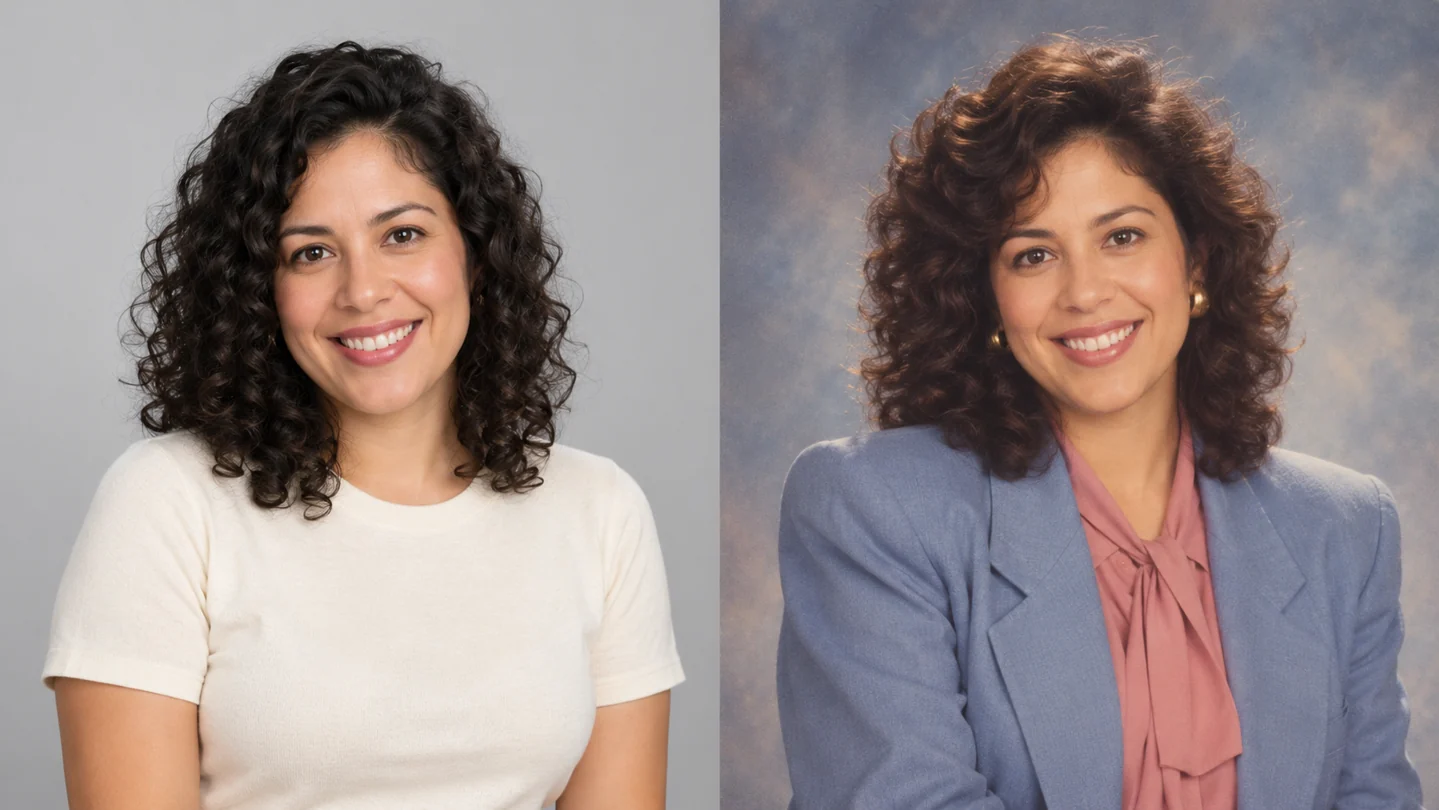
Matched modern portrait and 1980s-style portrait of the same curly-haired woman, with period hair, blouse and blazerIllustrative 80s style study

Key Features of 80s Filter

Explore the hair, clothing, and photographic character that give a portrait its 1980s mood.

Same woman in a modern cream top and an 80s blouse and blue blazer against a mottled studio backdrop

Give your portrait an 80s makeover.

The ready-made prompt brings together fuller hair, relaxed period clothing, soft studio light, and a gently faded film finish. Start with a clear portrait to give the model a useful reference for your features. This is a newly generated interpretation, so faces and details can change.

Try the 80s portrait look
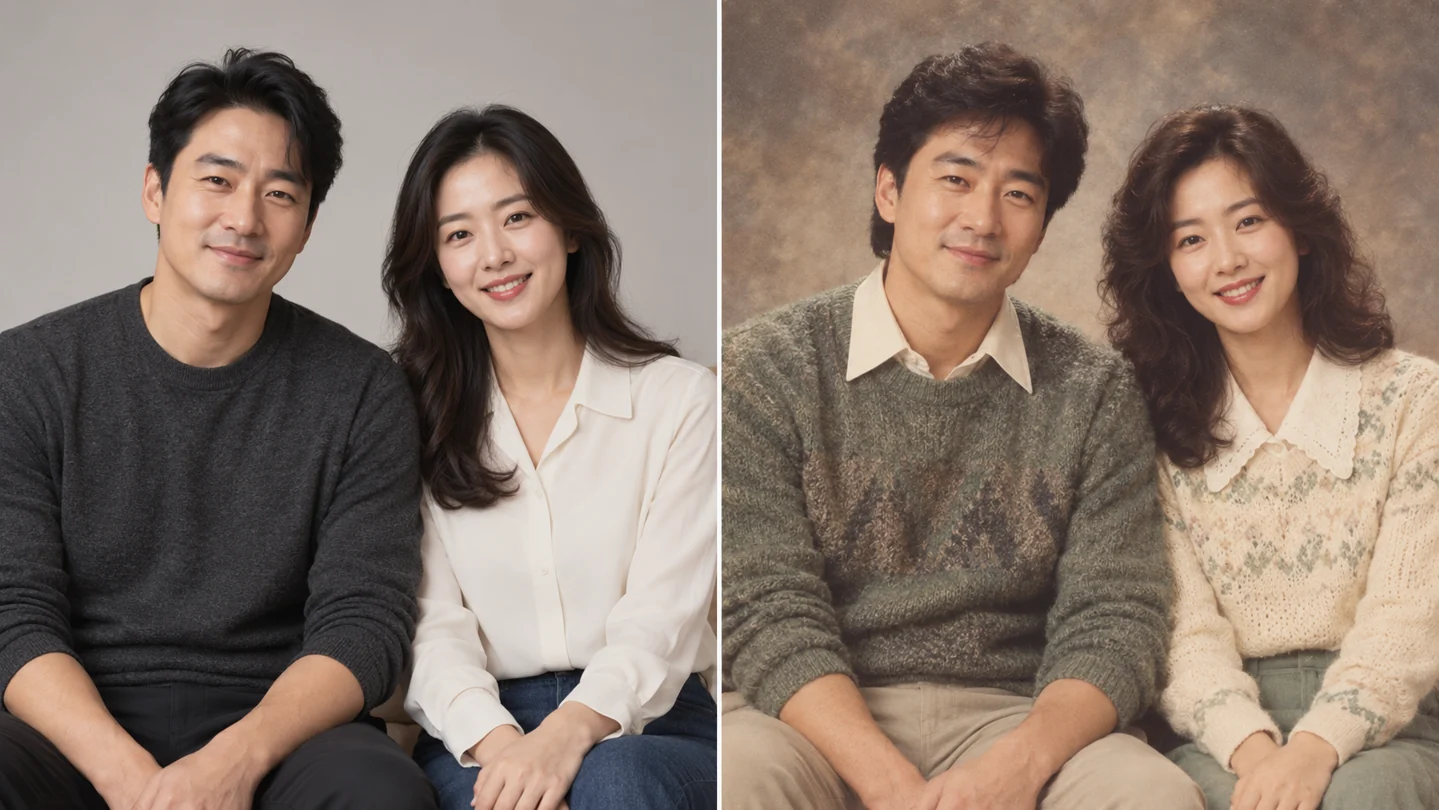
Matched couple photos showing contemporary clothes and coordinated 1980s knitwear with soft analog color

Bring a shared photo into the same decade.

Use one photo containing both people to explore coordinated knitwear, period collars, and warm album color. Keep faces clear and at a similar size in the source. Pizu AI restyles the uploaded image; this workspace does not combine two separate portraits.

Restyle a shared photo
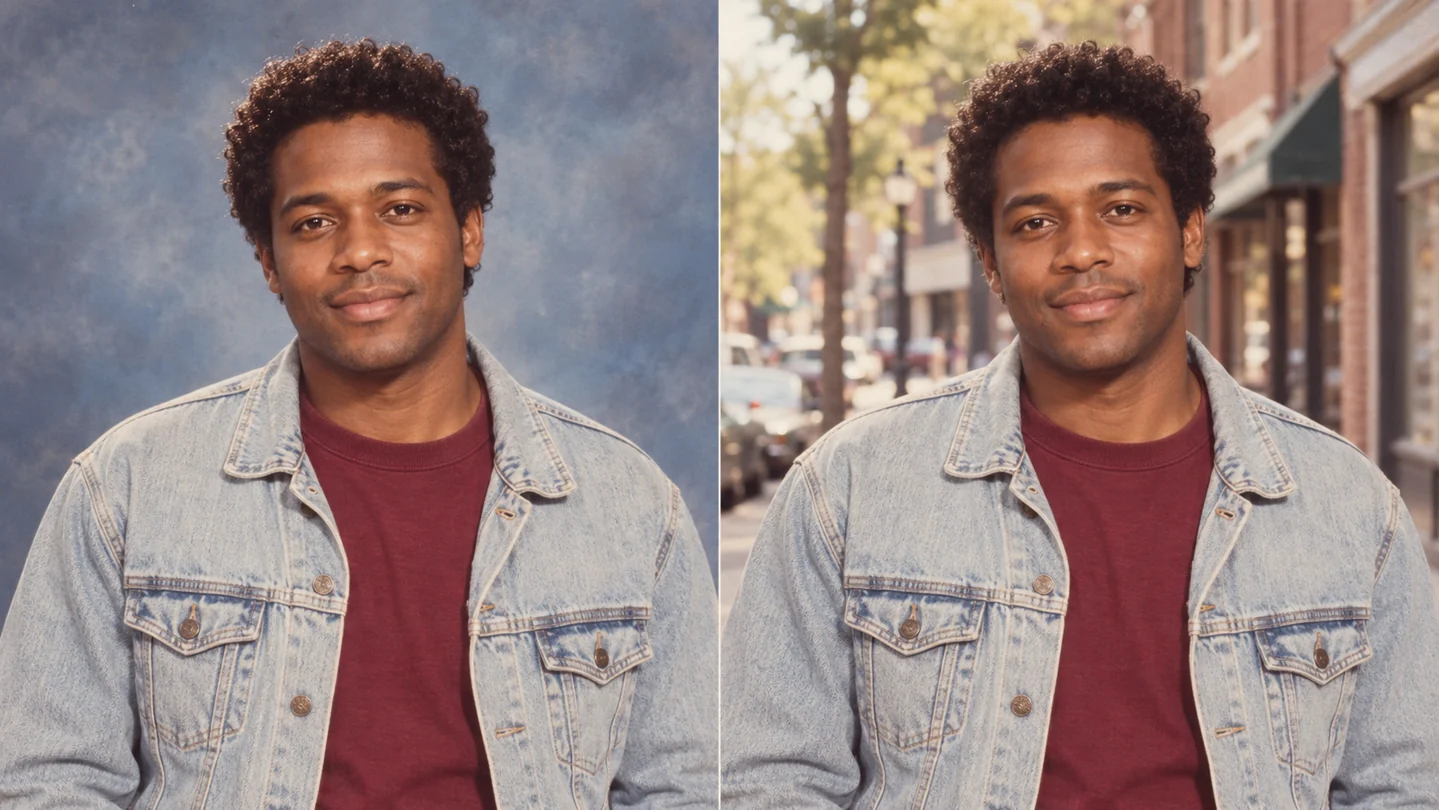
Same man in an 80s denim jacket against a studio backdrop and a brick street, showing two scene directions

Choose a studio mood or keep your setting.

The starting portrait prompt uses a softly mottled studio backdrop. Edit it to keep your street, room, or holiday setting instead, or ask for a specific jacket color. Your words guide a fresh interpretation; there is no numerical effect-strength slider.

Personalize the 80s look

How to use 80s Filter

The 80s prompt is already filled in. Upload your photo and apply it as it is, or edit the look before you generate.

  1. Upload a clear photo: enlarged view of the relevant workspace control01

    Upload a clear photo

    Add one JPG, PNG, or WebP image up to 10 MB. For a portrait, show the face clearly and leave room around the hair and shoulders.

  2. Keep the ready-made prompt: enlarged view of the relevant workspace control02

    Keep the ready-made prompt

    No writing is required. Use the preset for the illustrated studio direction, or edit it to keep your original background or change the styling.

  3. Apply and save: enlarged view of the relevant workspace control03

    Apply and save

    Click Apply filter. Review the face, hands, and small details, then use the shared download controls to save a PNG or JPG. Sign in if your guest attempts are used.

Made for your next idea

Ways to use 80s Filter in your creative projects.

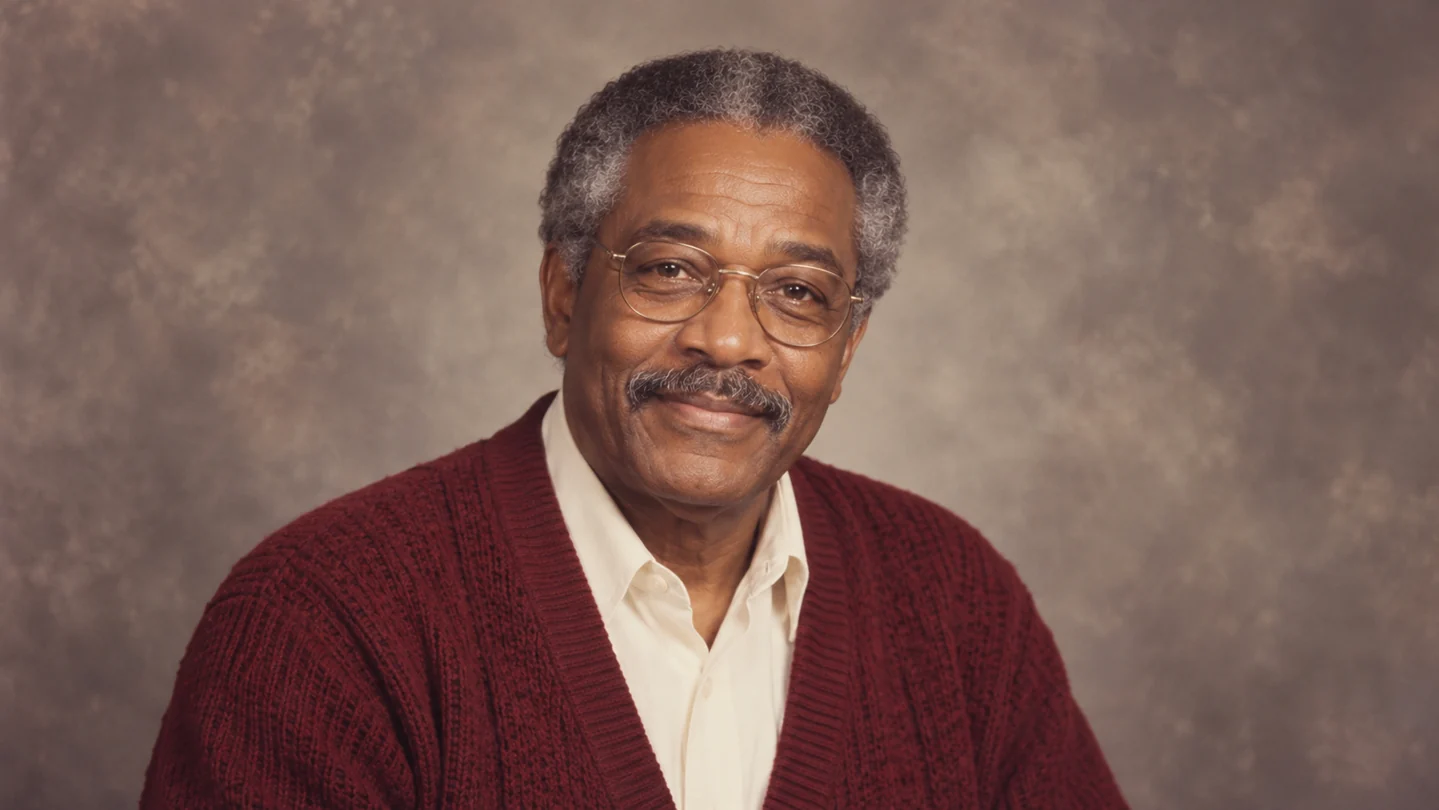
Older man with glasses and a burgundy cardigan in a warm 1980s-style studio portrait

A retro profile picture

Try a softly lit studio portrait for a profile that feels like a different decade.

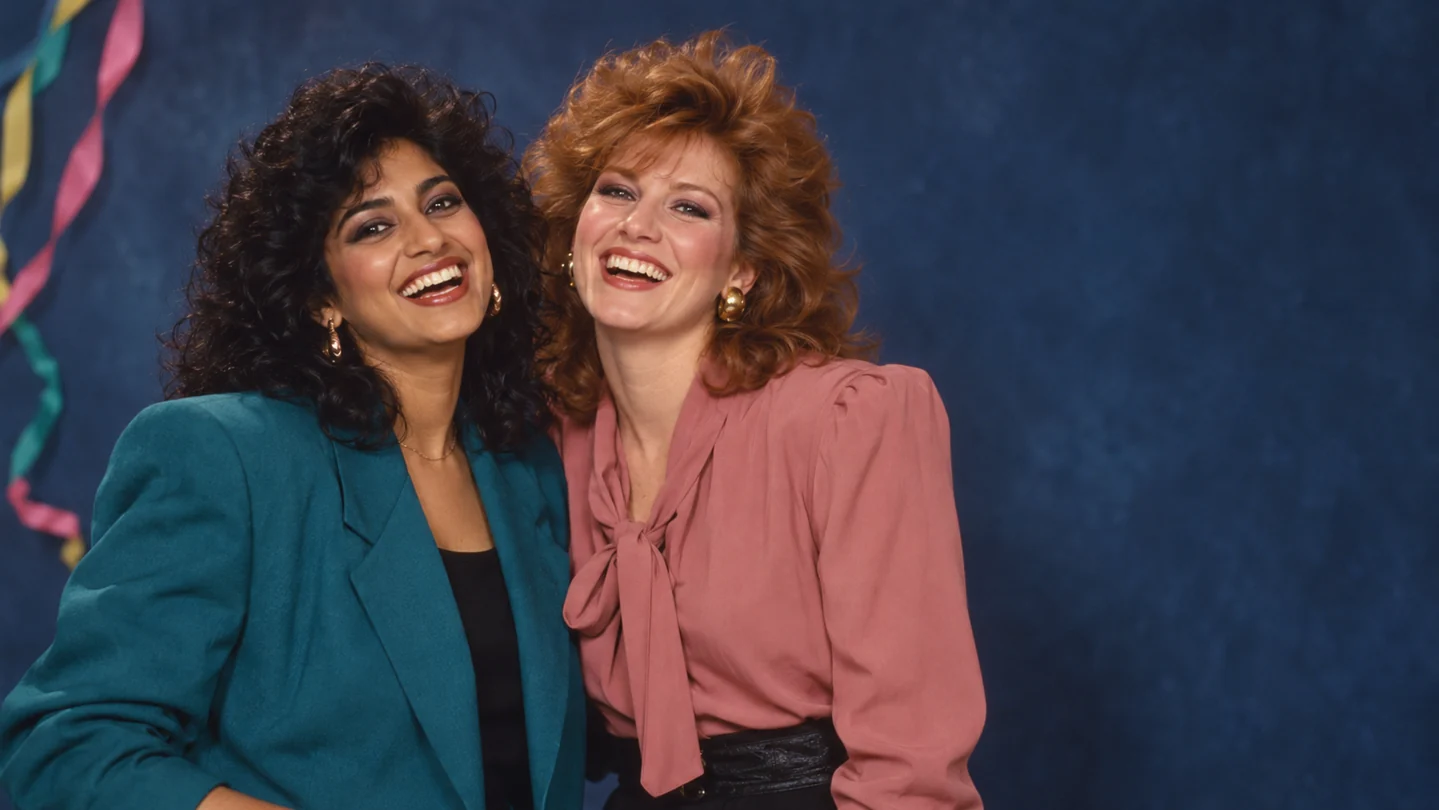
Two adult friends in teal and pink period clothing, photographed with warm film color and room beside them

80s party artwork

Create a nostalgic photo to place in your own invitation design. Add the event wording in your layout editor.

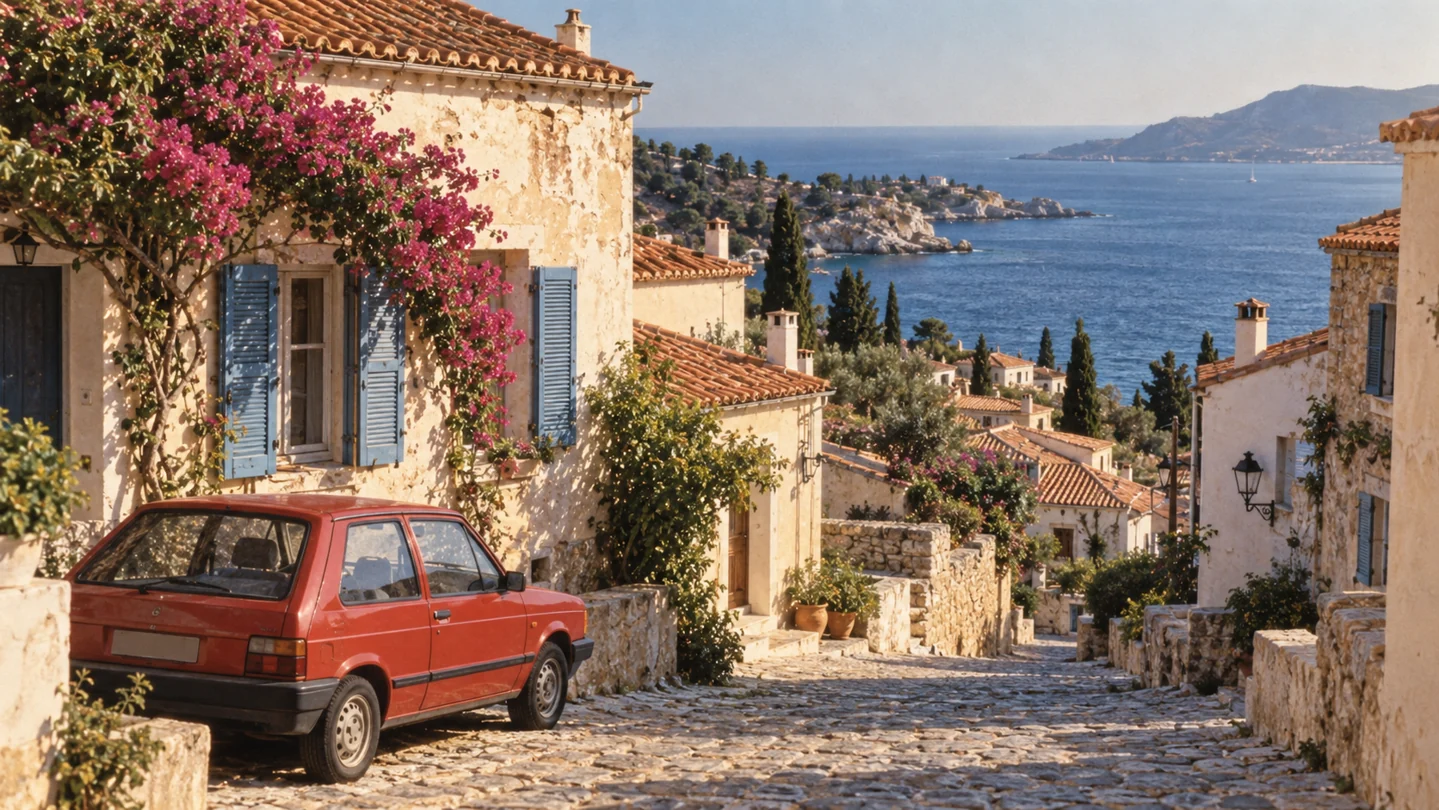
Coastal town with a red hatchback, blue shutters and soft warm analog print colors

An album-inspired moodboard

Give a favorite place a warm analog finish. For scenes without people, the preset keeps the setting as its starting point.

Why choose
Pizu AI?

Start with a complete 80s direction, then make it your own in the same photo workspace.

Explore the workspace

A ready-made 80s look

The full prompt is visible and filled in, so an upload is enough to get started.

Styling you can edit

Change the clothes, backdrop, or photographic mood in plain English before generating.

Try it as a guest

Use 2 guest image attempts shared across image tools, without signing up.

Save from the result

Download PNG or JPG and choose pixel dimensions or a smaller file-size target in the shared workspace.

Frequently asked questions

What is an 80s filter?

It reimagines a photo with 1980s-inspired styling and photographic character. Pizu AI starts with fuller period hair, relaxed clothing, soft portrait lighting, warm print color, and fine grain. Upload your photo and click Apply filter with the prompt already filled in.

Which photo should I upload?

Use a clear, evenly lit photo with the face visible and space around the hair and shoulders. For a shared portrait, include both people in one image. JPG, PNG, and WebP files up to 10 MB are supported.

Will it keep my face and only change the color?

The prompt asks to keep recognizable features, age, skin tone, expression, and pose, but the result is generative. Hair, clothing, background, faces, hands, and other details can change. Review it carefully. It is not a pixel-preserving color overlay or an old-photo restoration tool.

Can I keep my background or change the 80s look?

Yes. The default portrait direction uses a mottled studio backdrop. Edit the prompt to ask for your original setting, a different outfit, or a subtler film finish. There is no style dropdown or numerical strength control, and exact details are not guaranteed.

How is this different from the 90s Retro Filter?

This page starts with a 1980s portrait makeover, including period hair and clothing. The 90s Retro Filter starts with a disposable-camera snapshot treatment focused on film color, grain, and flash. Choose the page that matches the look you want.

Can I try the 80s filter for free?

Yes. You can use 2 guest image attempts per UTC day, then sign in to continue up to 5 total daily image attempts across Pizu AI tools. Site capacity also applies, and failed attempts may count. Paid upgrades are not available yet.

Are these examples actual Pizu AI results?

The examples are AI-created illustrative style studies prepared for this page. They show the intended visual direction, not measured Pizu AI outputs or historical photographs. Your source image and any prompt changes will affect the result.

Pizu AI

PIZU PRO · COMING SOON

More room for
your imagination.

Looking to create more? Paid plans are on the way.

Pizu AI Pro

For your next big idea
Coming soon

Plan details, pricing and generation allowances will be announced when subscriptions launch.

Checkout is not available yet.

Your free plan stays active. No payment details are collected and no charges will be made.

Ask about upgrades