Pizu AI

Photo to Pixel Art

Turn your photo into a retro pixel-art interpretation with bold shapes and color.

505 / 4000

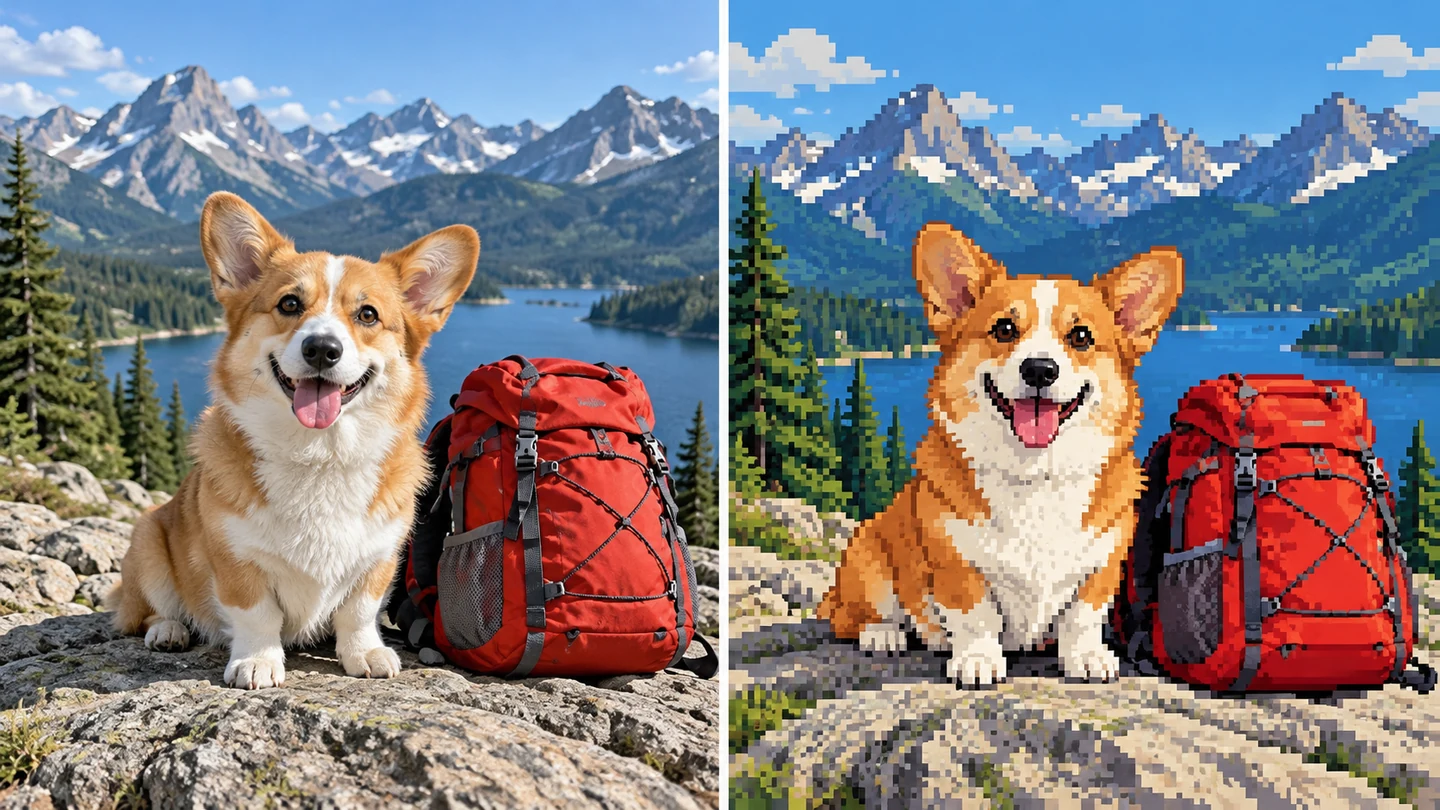
Matched diptych of a photographic corgi sitting beside a red backpack and the same scene as crisp retro pixel art with stepped shapesIllustrative style study

Key Features of Photo to Pixel Art

Simplify a photo into bold shapes, readable silhouettes, and a playful retro-art direction.

Matched diptych of a photographic corgi sitting beside a red backpack and the same scene as crisp retro pixel art with stepped shapes

Turn photos into retro pixel-style illustrations

Reimagine your subject with stepped edges, distinct color blocks, and simplified shapes. Create a new pixel-style image instead of simply blurring or shrinking the original photo.

Try a pixel-art version
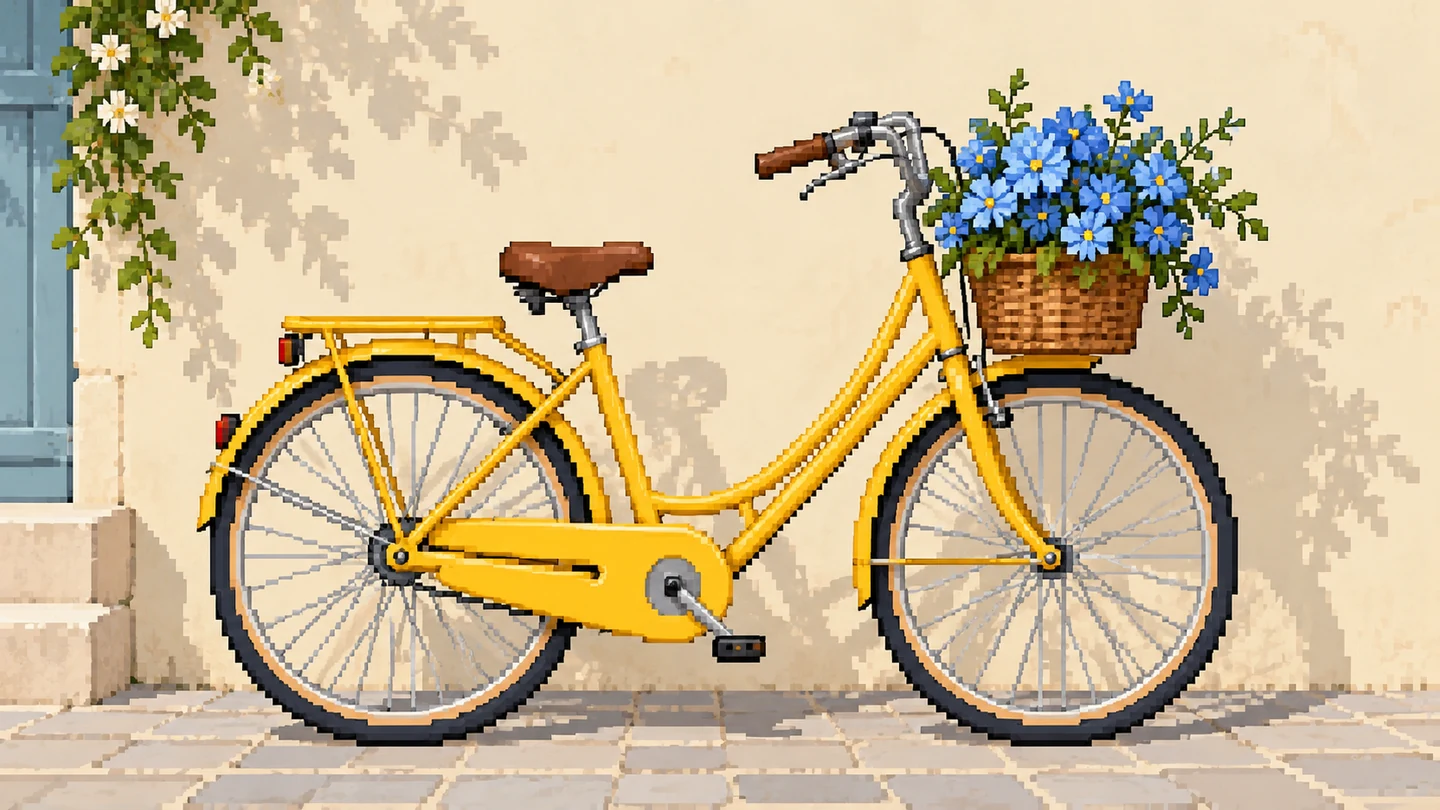
A pixel-art illustration of a yellow bicycle with a blue flower basket against a simple cream wall, clear silhouette and square stepped edges

Give pets and objects a clear pixel silhouette

Turn recognizable shapes into playful retro characters and object illustrations. A clear subject and simple background help guide a readable pixel-art direction.

Restyle your subject
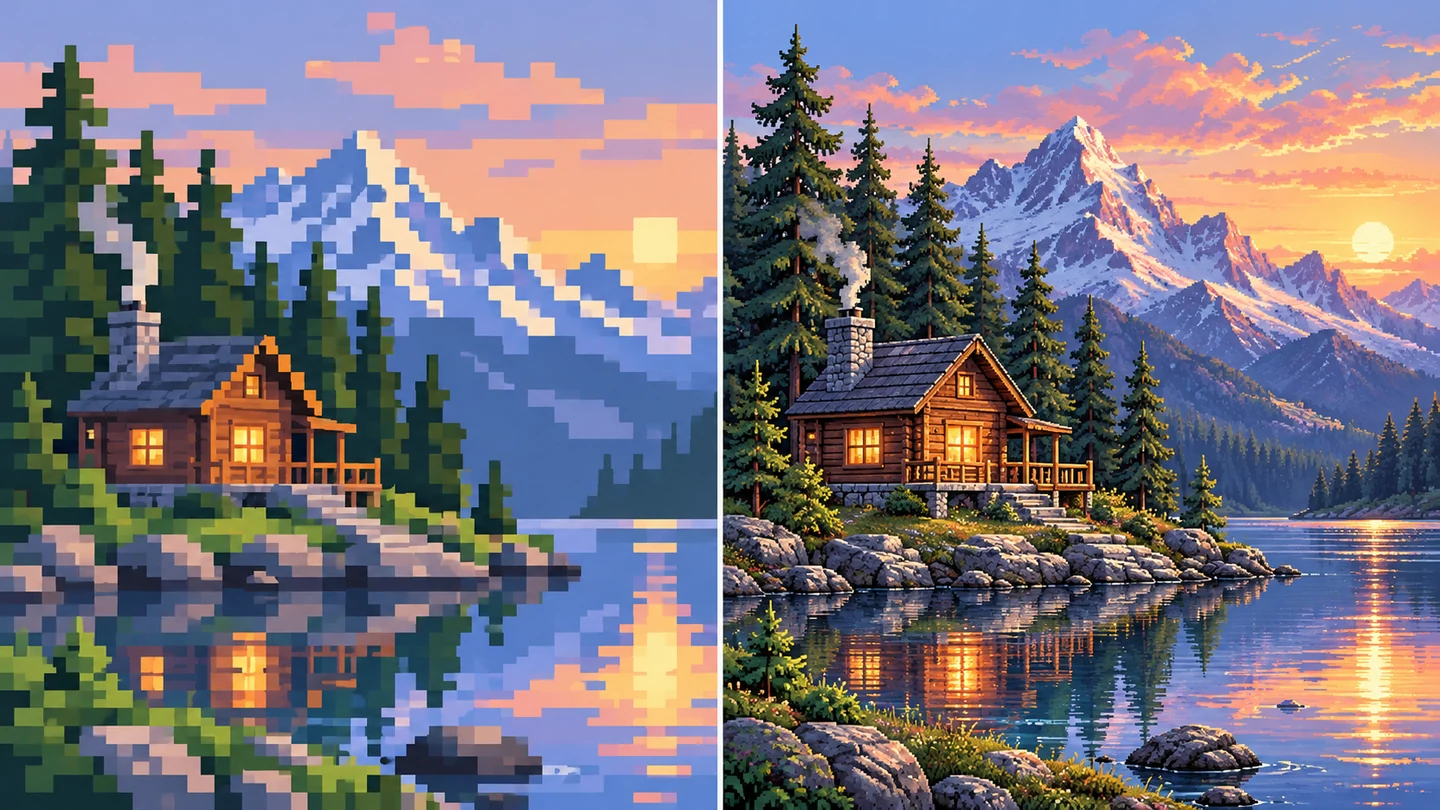
Two matched pixel-art studies of the same small mountain cabin and pines, one chunky and minimal and one more detailed with richer colors

Explore chunky blocks or richer retro detail

Ask for a minimal, large-block look or a more detailed pixel-style scene. Guide the palette and visual density in words to match the mood of your avatar or concept image.

Guide the retro look

How to use Photo to Pixel Art

Upload a photo and apply the ready-made pixel art style. The prompt is already filled in and can be edited.

  1. Upload a clear image: enlarged view of the relevant workspace control01

    Upload a clear image

    Choose a JPG, PNG, or WebP up to 10 MB. A single readable subject works better than many tiny details.

  2. Use the ready-made prompt: enlarged view of the relevant workspace control02

    Use the ready-made prompt

    The prompt is filled in for this style. Keep it as it is and generate, or edit it to adjust the treatment. No writing is required.

  3. Generate and inspect: enlarged view of the relevant workspace control03

    Generate and inspect

    Select Apply filter, review the result at the size you need, and download. Sign in if your two guest attempts have been used.

Made for your next idea

Ways to use Photo to Pixel Art in your creative projects.

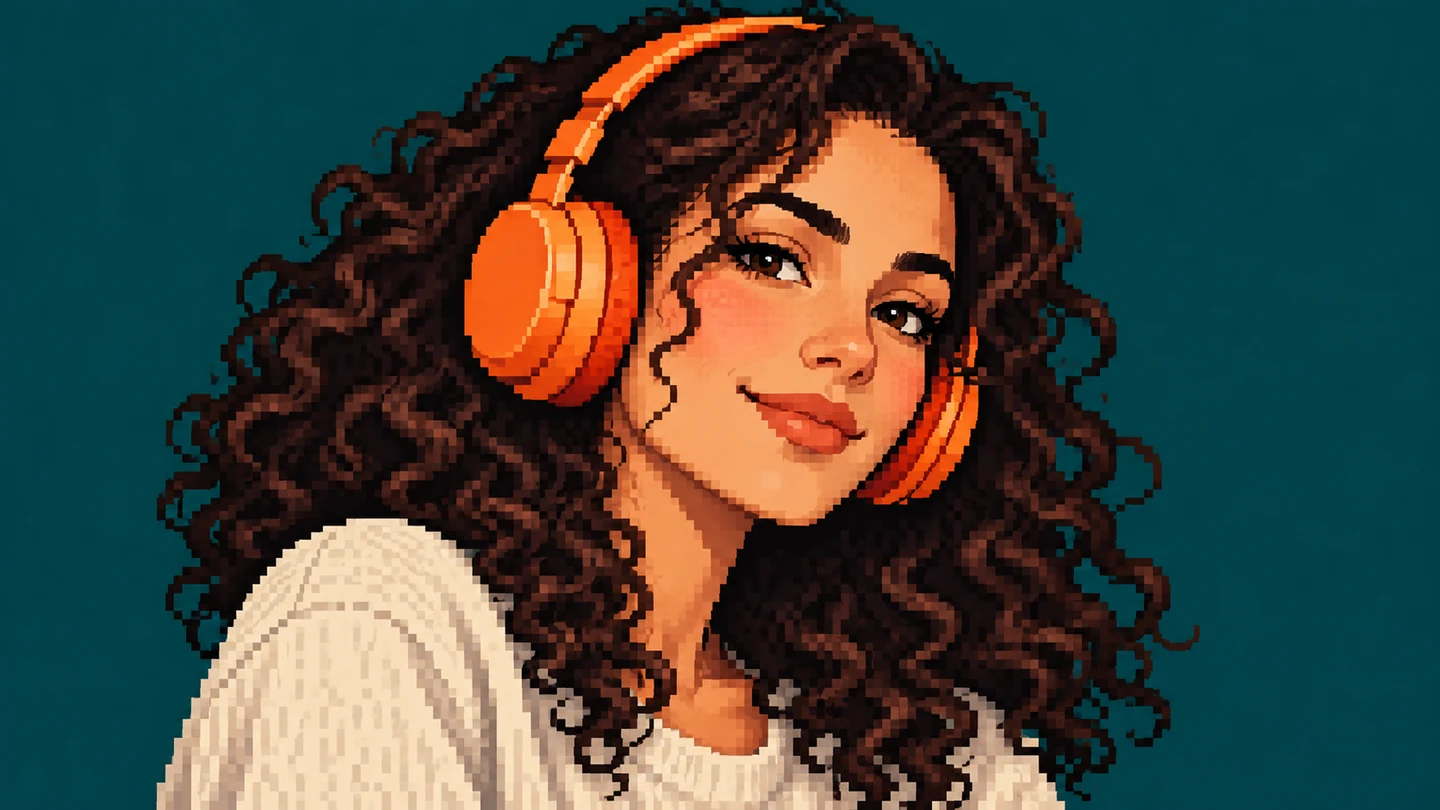
A crisp pixel-art portrait of an adult woman with curly dark hair and orange headphones on a deep teal background

Gaming profile concepts

Explore a retro portrait for a gaming or community profile, then crop it to the required size.

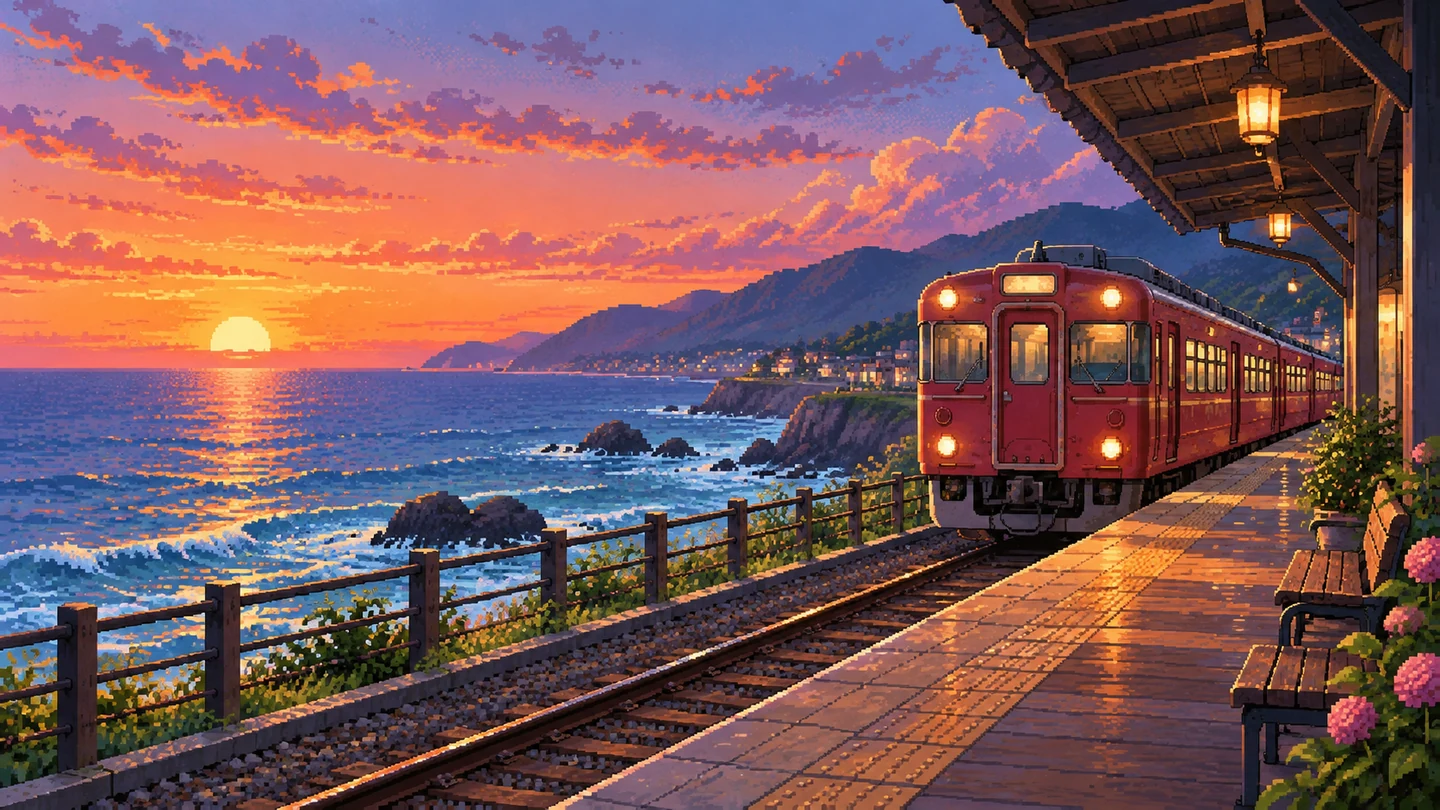
A pixel-art scene of a coastal railway station at sunset with a red train and blue ocean

Retro scene moodboards

Recast a landscape as a game-inspired scene to help define a visual direction.

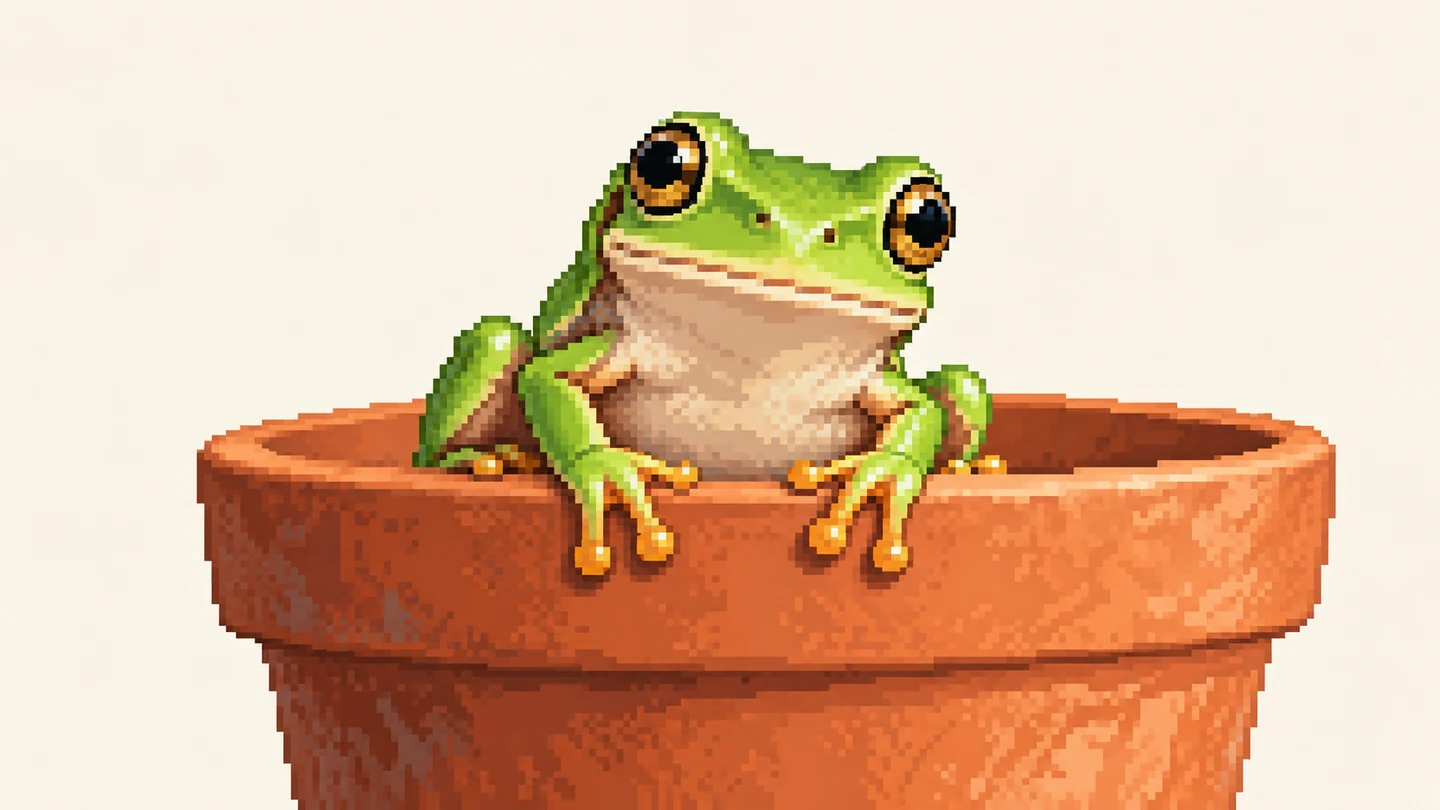
A pixel-art illustration of a green tree frog perched on a terracotta plant pot, simple pale background

Small graphic ideas

Try an object or pet as a bold pixel-style motif for a poster or sticker concept.

Why choose
Pizu AI?

Explore the appeal of pixel-style art without drawing every block by hand.

Explore the workspace

A recognizable retro aesthetic

Guide stepped outlines and distinct color blocks for pixel-style portraits, pets, and scenes.

Adjust the level of visual detail

Request chunky shapes or a richer illustration through the editable preset.

Try pixel styling without signup

Start with 2 free guest image attempts, shared across Pizu AI image tools.

Easy digital downloads

Save your result as PNG or JPG for an avatar or concept board. Outputs are illustrations, not editable sprite sheets.

Frequently asked questions

How do I convert a photo to pixel art?

Upload a photo and select Apply filter. You can edit the ready-made prompt for a chunky or more detailed retro look.

Does this tool pixelate or blur private information?

No. It generates a pixel-style illustration and should not be used to redact faces, license plates, or sensitive text.

Can I choose an exact 32×32 or 64×64 grid?

No. The output is a generated raster illustration, not an exact pixel grid. There are no grid-size, indexed-palette, dithering, or per-pixel editing controls.

Can I use the result as a game sprite?

Use it as a visual concept for further editing. Consistent frames, transparent backgrounds, exact palettes, tile alignment, and production-ready sprite sheets are not provided.

Can I try this tool for free?

Yes. You can submit two guest attempts per UTC day, then sign in with Google to continue up to five total daily attempts across Pizu AI tools. Site capacity also applies. Attempts can count even if generation fails. Paid upgrades are not available yet.

What happens to my uploaded photo?

Your photo and instructions are sent to GrsAI for processing. Pizu AI keeps task status and the result link rather than your source photo or prompt. Provider retention follows its own policies. Save the result promptly because links may expire.

Are the examples actual Pizu AI results?

The images on this page are AI-created visual studies, not measured Pizu AI outputs. They show possible creative directions. Your result depends on the source image and instructions and may differ.

Pizu AI

PIZU PRO · COMING SOON

More room for
your imagination.

Looking to create more? Paid plans are on the way.

Pizu AI Pro

For your next big idea
Coming soon

Plan details, pricing and generation allowances will be announced when subscriptions launch.

Checkout is not available yet.

Your free plan stays active. No payment details are collected and no charges will be made.

Ask about upgrades